> ## Documentation Index
> Fetch the complete documentation index at: https://docs.openmic.ai/llms.txt
> Use this file to discover all available pages before exploring further.
# Cal.com Availability Check
> Learn how to add a Cal.com calendar availability check to your AI agents to help customers find available time slots automatically.
export const ArcadeEmbed = ({url, title}) => {
return
;
};
**Smart Scheduling**: The Check Calendar Availability function allows your AI agents to check real-time availability from your Cal.com calendars, helping customers find open time slots without manual calendar checking.
## Interactive Demo
See how to set up the Check Calendar Availability function for simple agents:
***
## Overview
The Check Calendar Availability function integrates your Cal.com calendars with your AI agents, enabling them to check available time slots in real-time during conversations. This powerful feature helps automate scheduling by letting your agent instantly tell customers when you're available.
**Key Benefits:**
* Check real-time calendar availability during conversations
* Provide instant responses to "When are you available?" questions
* Reduce back-and-forth scheduling coordination
* Automate the first step of appointment booking
**Integration:** This function uses [Cal.com](https://cal.com), a popular open-source scheduling platform.
***
## Add Check Calendar Availability to Simple Agents
Follow these steps to add the Check Calendar Availability function to your AI voice agent:
### Step 1: Navigate to Simple Agents
From your dashboard sidebar, click on **Simple Agents**.
***
### Step 2: Select Your Agent
Click on the agent you want to configure from the list.
***
### Step 3: Open Custom Functions Tab
Click on the **Custom Functions** tab in the agent configuration.
***
### Step 4: Add New Function
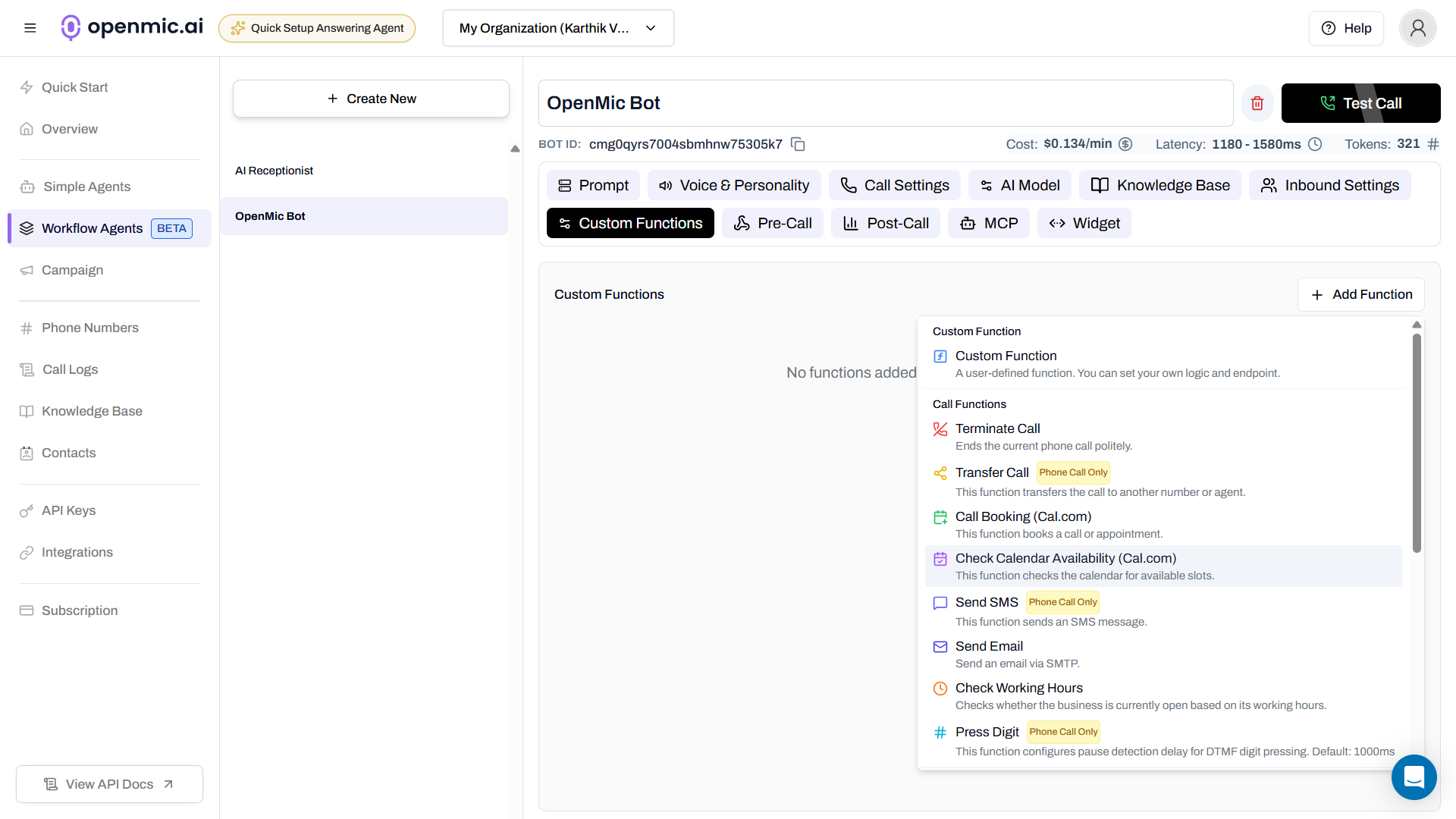
Click the **Add Function** button to open the function selection menu.
***
### Step 5: Select Check Calendar Availability
Click on **Check Calendar Availability** from the available functions. A configuration popup will appear with two setup modes.
 ***
## Configuration Modes
Cal.com offers two ways to connect your calendar: **Static Mode** (no API key required) and **Webhook Mode** (requires API key for more control). Choose the mode that best fits your needs.
## Static Mode Configuration
Static mode fetches publicly available event types using your Cal.com username or organization slug. This is the easiest way to get started and doesn't require an API key.
### Step 1: Enter Cal.com Username or Organization Slug
***
## Configuration Modes
Cal.com offers two ways to connect your calendar: **Static Mode** (no API key required) and **Webhook Mode** (requires API key for more control). Choose the mode that best fits your needs.
## Static Mode Configuration
Static mode fetches publicly available event types using your Cal.com username or organization slug. This is the easiest way to get started and doesn't require an API key.
### Step 1: Enter Cal.com Username or Organization Slug
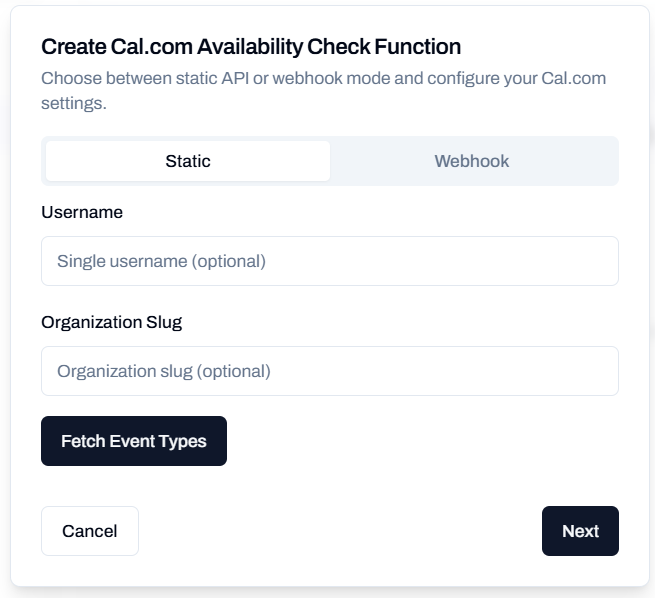 Enter your Cal.com **username** or **organization slug**:
* **Username**: Your personal Cal.com username (e.g., `jane` if your Cal.com URL is `cal.com/jane`)
* Find it in your Cal.com profile settings
* **Organization Slug**: Your organization's Cal.com slug (e.g., `acme` if your team URLs are like `acme.cal.com/jane` or `schedule.acme.com/jane`)
* Find it in your organization settings
***
### Step 2: Fetch Event Types
Enter your Cal.com **username** or **organization slug**:
* **Username**: Your personal Cal.com username (e.g., `jane` if your Cal.com URL is `cal.com/jane`)
* Find it in your Cal.com profile settings
* **Organization Slug**: Your organization's Cal.com slug (e.g., `acme` if your team URLs are like `acme.cal.com/jane` or `schedule.acme.com/jane`)
* Find it in your organization settings
***
### Step 2: Fetch Event Types
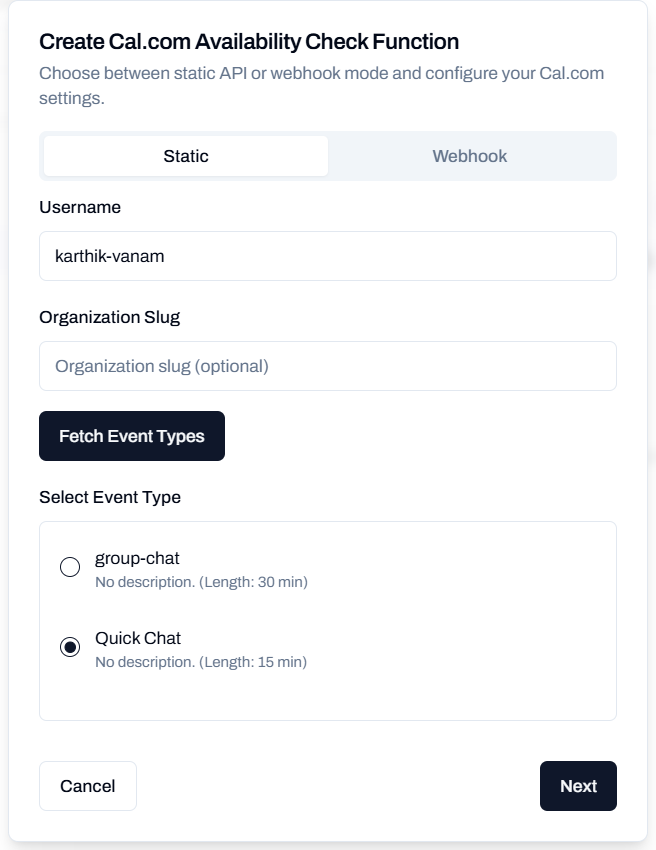 Click the **Fetch Event Types** button to retrieve all publicly available event types from your Cal.com account.
After fetching, you'll see a dropdown list of all your available event types (e.g., "30 Minute Meeting", "Discovery Call", "Consultation").
**Choose an Event Type** from the dropdown that you want your AI agent to check availability for.
***
### Step 3: Configure Function Options
Click the **Fetch Event Types** button to retrieve all publicly available event types from your Cal.com account.
After fetching, you'll see a dropdown list of all your available event types (e.g., "30 Minute Meeting", "Discovery Call", "Consultation").
**Choose an Event Type** from the dropdown that you want your AI agent to check availability for.
***
### Step 3: Configure Function Options
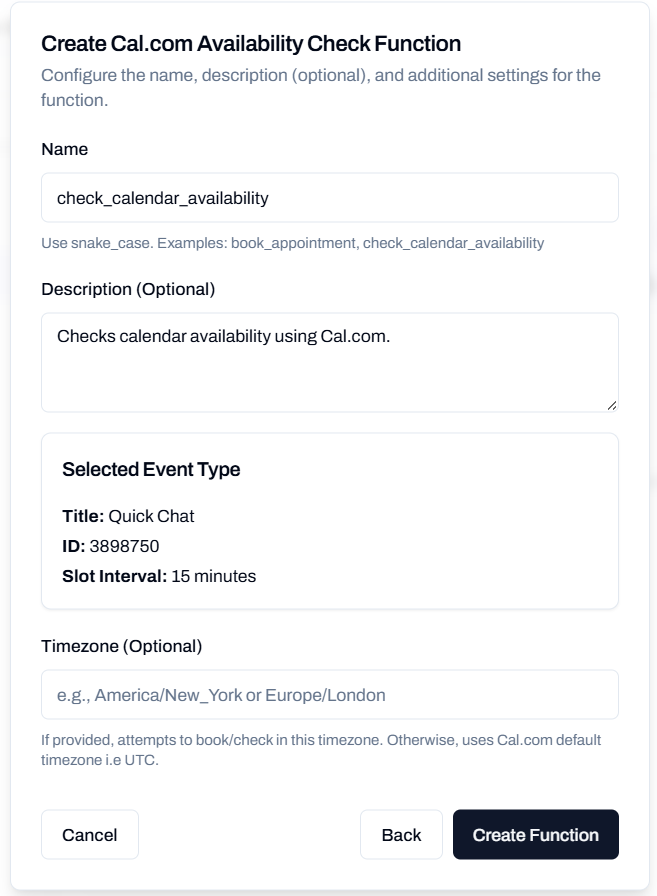 Configure the following options:
#### Function Name
Give your function a descriptive name in snake\_case (e.g., `check_30min_meeting_availability`, `check_consultation_slots`).
#### Description
Describe when this function should be used. This helps the AI understand when to check availability.
**Examples:**
* "Use this when the customer asks about available time slots for a consultation"
* "Check this when the customer wants to know when I'm free for a meeting"
* "Use this to find available appointment times"
#### Timezone (Optional)
Specify the timezone for checking availability (e.g., `America/New_York` or `Europe/London`). If not provided, Cal.com will use its default timezone (UTC).
***
### Step 4: Create Function
Click **Create Function** to save your configuration. The function is now ready to use!
***
### Step 5: Test the Function
Test your newly created function:
1. Start a call or conversation with your AI agent
2. Ask your agent to check for available slots, for example:
* "What times are available this week?"
* "When is the next available appointment?"
* "Show me available slots for next Monday"
Your agent will use the function to fetch real-time availability from your Cal.com calendar and respond with open time slots.
**Static mode uses public event types**, so ensure the event type you selected is set to "Public" in your Cal.com settings.
## Webhook Mode Configuration
Webhook mode provides more control and security by using your Cal.com API key. This allows you to access private event types and configure advanced settings.
### Step 1: Enter Cal.com API Key and Event Type ID
Configure the following options:
#### Function Name
Give your function a descriptive name in snake\_case (e.g., `check_30min_meeting_availability`, `check_consultation_slots`).
#### Description
Describe when this function should be used. This helps the AI understand when to check availability.
**Examples:**
* "Use this when the customer asks about available time slots for a consultation"
* "Check this when the customer wants to know when I'm free for a meeting"
* "Use this to find available appointment times"
#### Timezone (Optional)
Specify the timezone for checking availability (e.g., `America/New_York` or `Europe/London`). If not provided, Cal.com will use its default timezone (UTC).
***
### Step 4: Create Function
Click **Create Function** to save your configuration. The function is now ready to use!
***
### Step 5: Test the Function
Test your newly created function:
1. Start a call or conversation with your AI agent
2. Ask your agent to check for available slots, for example:
* "What times are available this week?"
* "When is the next available appointment?"
* "Show me available slots for next Monday"
Your agent will use the function to fetch real-time availability from your Cal.com calendar and respond with open time slots.
**Static mode uses public event types**, so ensure the event type you selected is set to "Public" in your Cal.com settings.
## Webhook Mode Configuration
Webhook mode provides more control and security by using your Cal.com API key. This allows you to access private event types and configure advanced settings.
### Step 1: Enter Cal.com API Key and Event Type ID
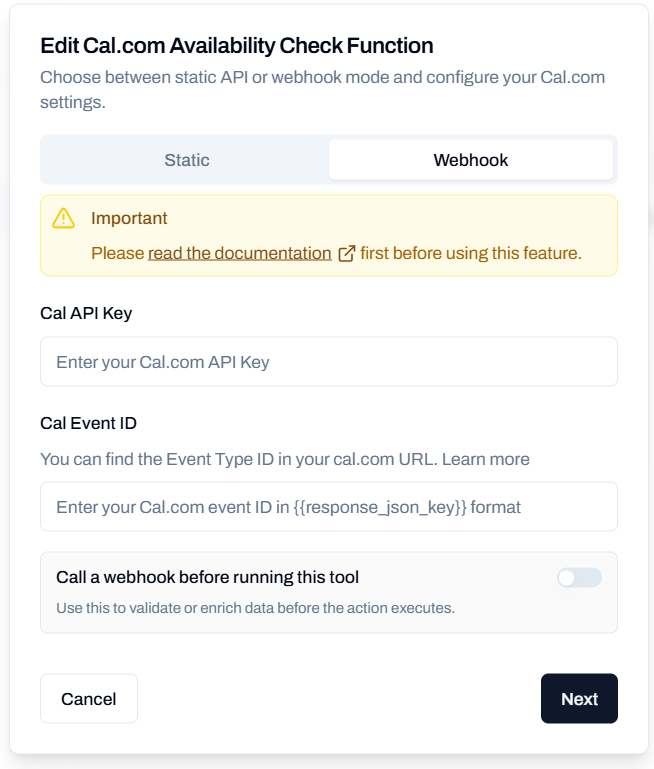 You'll need two pieces of information from your Cal.com account:
#### Cal.com API Key
Generate an API key from your Cal.com account:
1. Log in to [Cal.com](https://app.cal.com)
2. Navigate to **Settings** → **Security** → **API Keys**
3. Click **New API Key**
4. Give it a name (e.g., "OpenMic Integration")
5. Copy the generated API key
6. Paste it in the **API Key** field
**Keep your API key secure**: Never share your API key publicly. It provides access to your Cal.com account and calendar data.
#### Cal.com Event Type ID
Find your Event Type ID:
1. Go to your Cal.com dashboard
2. Click on **Event Types**
3. Open the event type you want to use
4. Look at the URL in your browser's address bar
5. The Event Type ID is the number between the slashes
* Example: `app.cal.com/event-types/123456` → Event Type ID is `123456`
For more details, see [Cal.com's guide on finding Event Type IDs](https://cal.com/help/event-types/eventtype-id).
#### Configure Additional Fields
You'll need two pieces of information from your Cal.com account:
#### Cal.com API Key
Generate an API key from your Cal.com account:
1. Log in to [Cal.com](https://app.cal.com)
2. Navigate to **Settings** → **Security** → **API Keys**
3. Click **New API Key**
4. Give it a name (e.g., "OpenMic Integration")
5. Copy the generated API key
6. Paste it in the **API Key** field
**Keep your API key secure**: Never share your API key publicly. It provides access to your Cal.com account and calendar data.
#### Cal.com Event Type ID
Find your Event Type ID:
1. Go to your Cal.com dashboard
2. Click on **Event Types**
3. Open the event type you want to use
4. Look at the URL in your browser's address bar
5. The Event Type ID is the number between the slashes
* Example: `app.cal.com/event-types/123456` → Event Type ID is `123456`
For more details, see [Cal.com's guide on finding Event Type IDs](https://cal.com/help/event-types/eventtype-id).
#### Configure Additional Fields
 After entering your API key and Event Type ID, you'll see additional webhook configuration options:
**Call a webhook before running this tool** (Optional)
* Toggle this on to validate or enrich data before checking availability
* **Use the pre-call webhook URL**: Use the webhook URL configured in your agent settings
* **Custom webhook URL**: Or provide a custom webhook URL for this specific function (e.g., `https://your-domain.com/webhook/pre-tool`)
Click **Next** to proceed to the function configuration.
***
### Step 2: Configure Function Options
After entering your API key and Event Type ID, you'll see additional webhook configuration options:
**Call a webhook before running this tool** (Optional)
* Toggle this on to validate or enrich data before checking availability
* **Use the pre-call webhook URL**: Use the webhook URL configured in your agent settings
* **Custom webhook URL**: Or provide a custom webhook URL for this specific function (e.g., `https://your-domain.com/webhook/pre-tool`)
Click **Next** to proceed to the function configuration.
***
### Step 2: Configure Function Options
 Configure the following options:
#### Function Name
Give your function a descriptive name in snake\_case (e.g., `check_private_calendar_availability`, `check_team_meeting_slots`).
#### Description
Describe when this function should be used. This helps the AI understand when to check availability.
**Examples:**
* "Use this when the customer asks about available consultation times"
* "Check this when someone wants to schedule a private meeting"
* "Use this to find available slots for team calls"
***
### Step 3: Create Function
Click **Create Function** to save your configuration. The function is now ready to use!
***
### Step 4: Test the Function
Test your newly created function:
1. Start a call or conversation with your AI agent
2. Ask your agent to check for available slots, for example:
* "What times are available this week?"
* "When is the next available appointment?"
* "Show me available slots for next Monday"
Your agent will use the function to fetch real-time availability from your Cal.com calendar and respond with open time slots.
**Webhook mode works with both public and private event types**, giving you more flexibility in your scheduling setup.
***
## Update Your Agent Prompt
To help your AI agent use the calendar check function effectively, add instructions to your bot's system prompt:
```
When customers ask about availability, available time slots, or when they can schedule
an appointment, use the check_calendar_availability function to fetch real-time
available slots from the calendar.
Present the available times in a clear, conversational way and help the customer
choose a time that works for them.
Example responses:
- "Let me check my calendar for you. I have availability on Tuesday at 2 PM,
Wednesday at 10 AM, and Thursday at 3 PM. Which works best for you?"
- "I see several open slots this week. Would you prefer morning or afternoon?"
```
***
## Configuration Best Practices
* Be specific about when to trigger (e.g., "when customers ask about availability")
* Mention the type of appointment or meeting
* Include example questions customers might ask
* Test with your own calendar first
* Try asking different availability questions
* Verify the agent responds with correct time slots
* Specify timezone in the configuration if needed
* Train your agent to clarify timezone with customers
* Always mention timezone when presenting available slots
***
## Use Cases and Examples
**Scenario:** Sales agent checks availability for consultation calls
**Configuration:**
* Mode: Static or Webhook
* Event Type: "30 Minute Sales Consultation"
* Description: "Check this when prospects ask about scheduling a consultation call"
**Agent Interaction:**
```
Customer: "I'd like to schedule a consultation to discuss your services."
Agent: "I'd be happy to schedule that for you! Let me check my availability...
I have openings on Tuesday at 2 PM, Wednesday at 10 AM, and Friday at 3 PM.
Which time works best for you?"
```
**Scenario:** Healthcare practice checks doctor availability
**Configuration:**
* Mode: Webhook (for private scheduling)
* Event Type: "Doctor Appointment"
* Description: "Use this when patients ask about available appointment times"
**Agent Interaction:**
```
Patient: "When is Dr. Smith available next week?"
Agent: "Let me check Dr. Smith's schedule for you... She has availability
next Monday at 9 AM, Tuesday at 2 PM, and Thursday at 11 AM. Would any of
these times work for you?"
```
**Scenario:** Service business checks technician availability
**Configuration:**
* Mode: Static
* Event Type: "On-site Service Call"
* Description: "Check when customers need to schedule a service appointment"
**Agent Interaction:**
```
Customer: "I need someone to come look at my HVAC system. When can you come?"
Agent: "I can help you with that! Let me check our technician availability...
We have open slots this Thursday at 1 PM, Friday at 10 AM, or next Monday at 3 PM.
Which would you prefer?"
```
**Scenario:** Recruiting team checks interviewer availability
**Configuration:**
* Mode: Webhook
* Event Type: "Candidate Interview - 45 min"
* Description: "Use when candidates need to schedule an interview"
**Agent Interaction:**
```
Candidate: "I'd like to schedule my interview. What times do you have available?"
Agent: "Thank you for your interest! Let me check our interview slots...
We have availability this week on Wednesday at 11 AM, Thursday at 2 PM, and
Friday at 4 PM. Which works best with your schedule?"
```
***
## Difference: Static vs Webhook Mode
**Advantages:**
* No API key required
* Quick and easy setup
* Perfect for public event types
* Minimal configuration needed
**Best For:**
* Simple scheduling needs
* Public-facing availability
* Getting started quickly
* Single-user calendars
**Advantages:**
* Access to private event types
* More configuration options
* Enhanced security
* Advanced features (buffer times, custom ranges)
**Best For:**
* Private/internal scheduling
* Advanced configuration needs
* Team calendars
* Enterprise use cases
***
## Frequently Asked Questions
Yes, you need a Cal.com account to use this function. Cal.com offers both free and paid plans. You can sign up at [cal.com](https://cal.com).
**Static mode** fetches publicly available event types using your username/organization slug and requires no API key. **Webhook mode** uses your Cal.com API key for access to private event types and more advanced configuration options.
1. Go to Cal.com and open your Event Types
2. Click on the event type you want to use
3. Look at the URL in your browser's address bar
4. The Event Type ID is the number between the slashes (e.g., `app.cal.com/event-types/123456`)
For more details, see [Cal.com's official guide](https://cal.com/help/event-types/eventtype-id).
Yes! Create multiple Check Calendar Availability functions, one for each event type. Give each function a clear name and description so your AI agent knows which one to use for different scenarios.
No, this function only *checks* availability. It doesn't book appointments. To enable booking, you'll need to use the **Call Booking** function (a separate custom function) or direct your customers to your Cal.com booking page.
The availability is checked in real-time when the function is triggered, so your agent always has the most up-to-date information from your Cal.com calendar.
Your AI agent will receive the information that no slots are available and can communicate this to the customer. Make sure to train your agent prompt to handle this scenario gracefully (e.g., "I don't have any availability this week, but I have several openings next week. Would you like me to check those?").
Yes, you can edit the function configuration at any time. Go to the Custom Functions tab in your agent settings and edit the function as needed.
***
## Troubleshooting
**Possible causes:**
* Incorrect username or organization slug
* Event types are set to private in Cal.com
* Network connectivity issues
**Solutions:**
* Verify your Cal.com username/organization slug is correct
* Ensure your event types are set to "Public" in Cal.com settings
* Check your internet connection
* Try refreshing the page and fetching again
**Possible causes:**
* Invalid API key
* API key was revoked or expired
* Incorrect Event Type ID
**Solutions:**
* Double-check your API key is copied correctly
* Generate a new API key in Cal.com settings
* Verify the Event Type ID is correct (check the URL in Cal.com)
* Ensure the API key has the necessary permissions
**Possible causes:**
* Function description is unclear
* Agent prompt doesn't instruct AI to use the function
* Customer's request doesn't match expected triggers
**Solutions:**
* Update the function description to be more specific
* Add clear instructions to your agent's system prompt
* Test with explicit phrases like "check availability" or "show available times"
* Review the function execution logs
***
## Need Help?
If you encounter issues or have questions about the Check Calendar Availability function:
* Test with your own calendar first to verify setup
* Review your function description and agent prompt
* Check your Cal.com event type settings
* Verify API key permissions (webhook mode)
* Review function execution logs in your dashboard
For technical support or questions about Cal.com integration, contact our support team.
Configure the following options:
#### Function Name
Give your function a descriptive name in snake\_case (e.g., `check_private_calendar_availability`, `check_team_meeting_slots`).
#### Description
Describe when this function should be used. This helps the AI understand when to check availability.
**Examples:**
* "Use this when the customer asks about available consultation times"
* "Check this when someone wants to schedule a private meeting"
* "Use this to find available slots for team calls"
***
### Step 3: Create Function
Click **Create Function** to save your configuration. The function is now ready to use!
***
### Step 4: Test the Function
Test your newly created function:
1. Start a call or conversation with your AI agent
2. Ask your agent to check for available slots, for example:
* "What times are available this week?"
* "When is the next available appointment?"
* "Show me available slots for next Monday"
Your agent will use the function to fetch real-time availability from your Cal.com calendar and respond with open time slots.
**Webhook mode works with both public and private event types**, giving you more flexibility in your scheduling setup.
***
## Update Your Agent Prompt
To help your AI agent use the calendar check function effectively, add instructions to your bot's system prompt:
```
When customers ask about availability, available time slots, or when they can schedule
an appointment, use the check_calendar_availability function to fetch real-time
available slots from the calendar.
Present the available times in a clear, conversational way and help the customer
choose a time that works for them.
Example responses:
- "Let me check my calendar for you. I have availability on Tuesday at 2 PM,
Wednesday at 10 AM, and Thursday at 3 PM. Which works best for you?"
- "I see several open slots this week. Would you prefer morning or afternoon?"
```
***
## Configuration Best Practices
* Be specific about when to trigger (e.g., "when customers ask about availability")
* Mention the type of appointment or meeting
* Include example questions customers might ask
* Test with your own calendar first
* Try asking different availability questions
* Verify the agent responds with correct time slots
* Specify timezone in the configuration if needed
* Train your agent to clarify timezone with customers
* Always mention timezone when presenting available slots
***
## Use Cases and Examples
**Scenario:** Sales agent checks availability for consultation calls
**Configuration:**
* Mode: Static or Webhook
* Event Type: "30 Minute Sales Consultation"
* Description: "Check this when prospects ask about scheduling a consultation call"
**Agent Interaction:**
```
Customer: "I'd like to schedule a consultation to discuss your services."
Agent: "I'd be happy to schedule that for you! Let me check my availability...
I have openings on Tuesday at 2 PM, Wednesday at 10 AM, and Friday at 3 PM.
Which time works best for you?"
```
**Scenario:** Healthcare practice checks doctor availability
**Configuration:**
* Mode: Webhook (for private scheduling)
* Event Type: "Doctor Appointment"
* Description: "Use this when patients ask about available appointment times"
**Agent Interaction:**
```
Patient: "When is Dr. Smith available next week?"
Agent: "Let me check Dr. Smith's schedule for you... She has availability
next Monday at 9 AM, Tuesday at 2 PM, and Thursday at 11 AM. Would any of
these times work for you?"
```
**Scenario:** Service business checks technician availability
**Configuration:**
* Mode: Static
* Event Type: "On-site Service Call"
* Description: "Check when customers need to schedule a service appointment"
**Agent Interaction:**
```
Customer: "I need someone to come look at my HVAC system. When can you come?"
Agent: "I can help you with that! Let me check our technician availability...
We have open slots this Thursday at 1 PM, Friday at 10 AM, or next Monday at 3 PM.
Which would you prefer?"
```
**Scenario:** Recruiting team checks interviewer availability
**Configuration:**
* Mode: Webhook
* Event Type: "Candidate Interview - 45 min"
* Description: "Use when candidates need to schedule an interview"
**Agent Interaction:**
```
Candidate: "I'd like to schedule my interview. What times do you have available?"
Agent: "Thank you for your interest! Let me check our interview slots...
We have availability this week on Wednesday at 11 AM, Thursday at 2 PM, and
Friday at 4 PM. Which works best with your schedule?"
```
***
## Difference: Static vs Webhook Mode
**Advantages:**
* No API key required
* Quick and easy setup
* Perfect for public event types
* Minimal configuration needed
**Best For:**
* Simple scheduling needs
* Public-facing availability
* Getting started quickly
* Single-user calendars
**Advantages:**
* Access to private event types
* More configuration options
* Enhanced security
* Advanced features (buffer times, custom ranges)
**Best For:**
* Private/internal scheduling
* Advanced configuration needs
* Team calendars
* Enterprise use cases
***
## Frequently Asked Questions
Yes, you need a Cal.com account to use this function. Cal.com offers both free and paid plans. You can sign up at [cal.com](https://cal.com).
**Static mode** fetches publicly available event types using your username/organization slug and requires no API key. **Webhook mode** uses your Cal.com API key for access to private event types and more advanced configuration options.
1. Go to Cal.com and open your Event Types
2. Click on the event type you want to use
3. Look at the URL in your browser's address bar
4. The Event Type ID is the number between the slashes (e.g., `app.cal.com/event-types/123456`)
For more details, see [Cal.com's official guide](https://cal.com/help/event-types/eventtype-id).
Yes! Create multiple Check Calendar Availability functions, one for each event type. Give each function a clear name and description so your AI agent knows which one to use for different scenarios.
No, this function only *checks* availability. It doesn't book appointments. To enable booking, you'll need to use the **Call Booking** function (a separate custom function) or direct your customers to your Cal.com booking page.
The availability is checked in real-time when the function is triggered, so your agent always has the most up-to-date information from your Cal.com calendar.
Your AI agent will receive the information that no slots are available and can communicate this to the customer. Make sure to train your agent prompt to handle this scenario gracefully (e.g., "I don't have any availability this week, but I have several openings next week. Would you like me to check those?").
Yes, you can edit the function configuration at any time. Go to the Custom Functions tab in your agent settings and edit the function as needed.
***
## Troubleshooting
**Possible causes:**
* Incorrect username or organization slug
* Event types are set to private in Cal.com
* Network connectivity issues
**Solutions:**
* Verify your Cal.com username/organization slug is correct
* Ensure your event types are set to "Public" in Cal.com settings
* Check your internet connection
* Try refreshing the page and fetching again
**Possible causes:**
* Invalid API key
* API key was revoked or expired
* Incorrect Event Type ID
**Solutions:**
* Double-check your API key is copied correctly
* Generate a new API key in Cal.com settings
* Verify the Event Type ID is correct (check the URL in Cal.com)
* Ensure the API key has the necessary permissions
**Possible causes:**
* Function description is unclear
* Agent prompt doesn't instruct AI to use the function
* Customer's request doesn't match expected triggers
**Solutions:**
* Update the function description to be more specific
* Add clear instructions to your agent's system prompt
* Test with explicit phrases like "check availability" or "show available times"
* Review the function execution logs
***
## Need Help?
If you encounter issues or have questions about the Check Calendar Availability function:
* Test with your own calendar first to verify setup
* Review your function description and agent prompt
* Check your Cal.com event type settings
* Verify API key permissions (webhook mode)
* Review function execution logs in your dashboard
For technical support or questions about Cal.com integration, contact our support team.