> ## Documentation Index
> Fetch the complete documentation index at: https://docs.openmic.ai/llms.txt
> Use this file to discover all available pages before exploring further.
# Send SMS
> Learn how to add a custom SMS function to your AI agents and workflows to send text messages automatically or based on conversation context.
export const ArcadeEmbed = ({url, title}) => {
return
;
};
**Stay Connected**: The Send SMS function enables your AI agents to send personalized text messages during conversations, helping you follow up with customers, send confirmations, share links, or deliver important information instantly.
## Interactive Demo
See how to set up the Send SMS function for both simple agents and workflow agents:
***
## Overview
The Send SMS function allows your AI agents to send text messages during conversations. This powerful feature can be used to send appointment confirmations, share links, deliver verification codes, send follow-up information, or any other text-based communication your business needs.
**Key Benefits:**
* Send personalized messages based on conversation context
* Share links, confirmations, and important information instantly
* Improve customer engagement with timely text communications
* Automate follow-up messages and reminders
***
## Add Send SMS to Simple Agents
Follow these steps to add the Send SMS function to your AI voice agent:
### Step 1: Navigate to Simple Agents
From your dashboard sidebar, click on **Simple Agents**.
***
### Step 2: Select Your Agent
Click on the agent you want to configure from the list.
***
### Step 3: Open Custom Functions Tab
Click on the **Custom Functions** tab in the agent configuration.
***
### Step 4: Add New Function
Click the **Add Function** button to open the function selection menu.
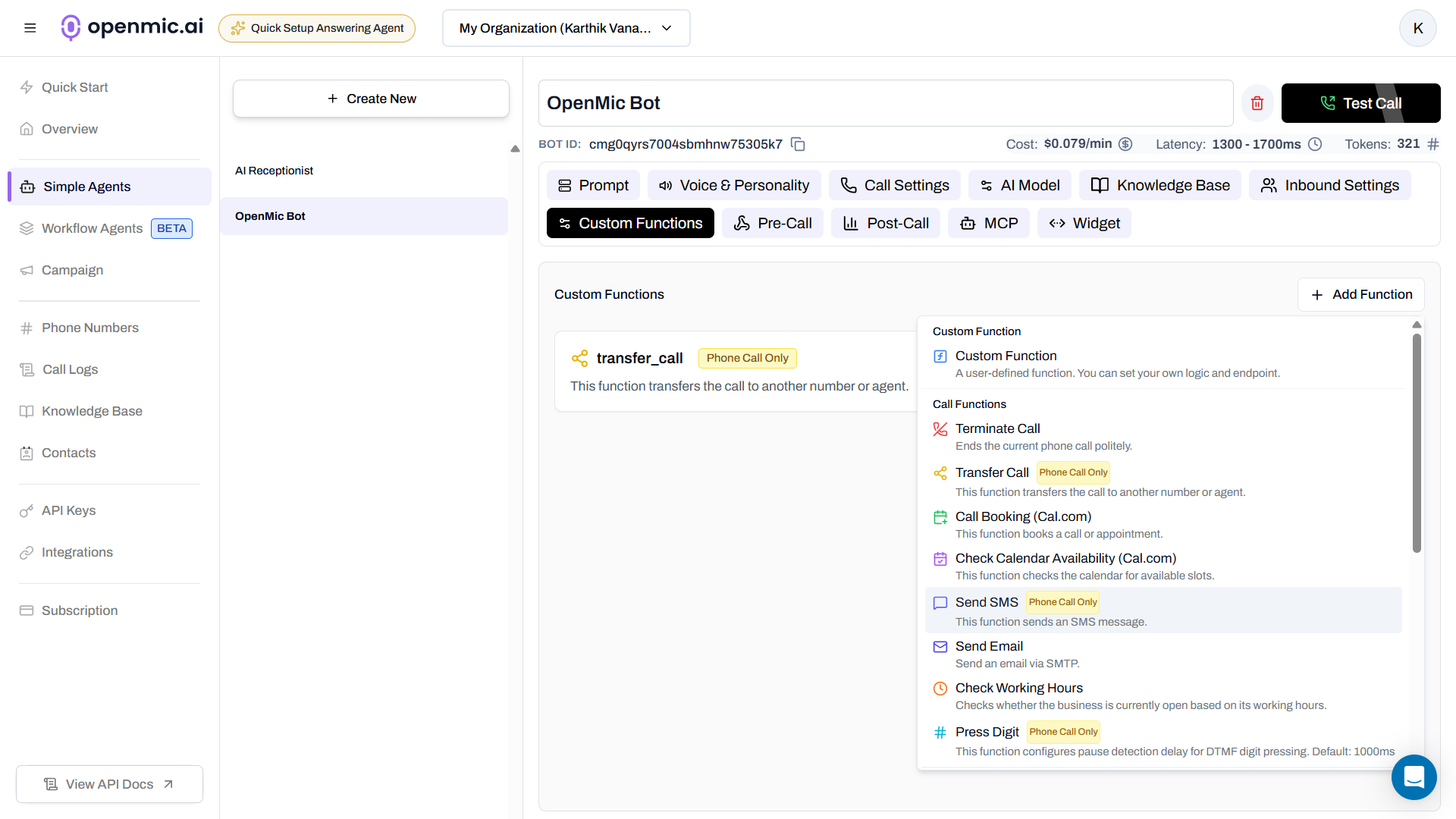 ***
### Step 5: Select Send SMS
Click on **Send SMS** from the available functions. A configuration popup will appear.
***
### Step 5: Select Send SMS
Click on **Send SMS** from the available functions. A configuration popup will appear.
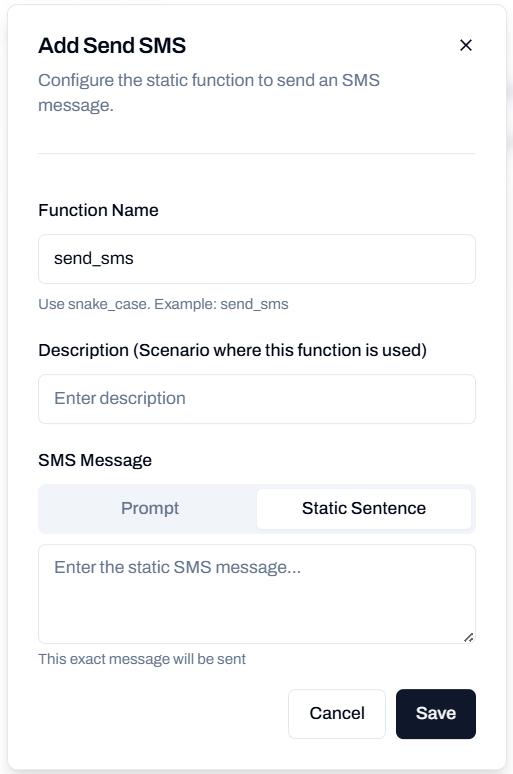 ***
### Step 6: Configure the Function
Fill in the required fields:
#### Function Name
Give your function a descriptive name (e.g., "Send Appointment Confirmation", "Send Link", "Send Verification Code").
#### Description
Describe when this function should be used. This helps the AI understand when to trigger the SMS.
**Examples:**
* "Use this when the customer requests an appointment confirmation via text"
* "Send this when the customer asks for the link to our website"
* "Use this when the customer needs their verification code"
#### SMS Message
Choose how the message should be generated:
Use AI-generated messages based on the conversation context.
**How it works:**
* The AI composes the SMS dynamically based on the conversation
* Can adapt based on customer information and context
* More flexible and contextual
**Example:** "Generate an SMS with the appointment details discussed in this conversation."
Use a fixed, pre-written message that will be sent every time.
**How it works:**
* Type your exact message in the text field
* The same message is used every time this function is triggered
* Consistent and predictable
**Example:**
```
Thank you for calling! Here's the link to our website: https://example.com
```
***
### Step 7: Save the Function
Click **Save** to add the Send SMS function to your agent.
Once saved, your AI agent will be able to use this function during conversations when the conditions you described are met.
***
## Add Send SMS to Workflow Agents
Follow these steps to add the Send SMS function to your workflow agent:
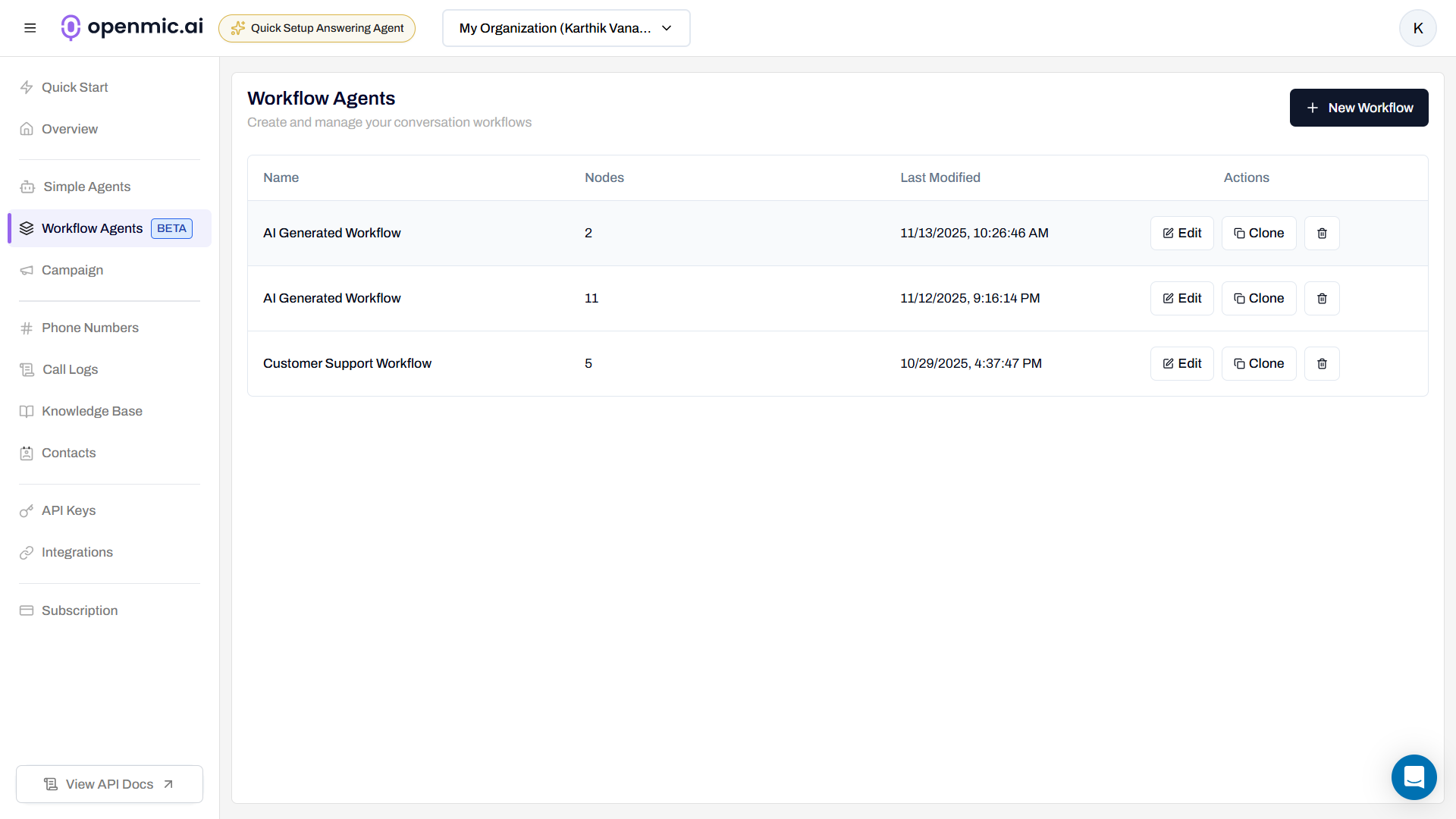
### Step 1: Navigate to Workflow Agents
From your dashboard sidebar, click on **Workflow Agents**.
***
### Step 6: Configure the Function
Fill in the required fields:
#### Function Name
Give your function a descriptive name (e.g., "Send Appointment Confirmation", "Send Link", "Send Verification Code").
#### Description
Describe when this function should be used. This helps the AI understand when to trigger the SMS.
**Examples:**
* "Use this when the customer requests an appointment confirmation via text"
* "Send this when the customer asks for the link to our website"
* "Use this when the customer needs their verification code"
#### SMS Message
Choose how the message should be generated:
Use AI-generated messages based on the conversation context.
**How it works:**
* The AI composes the SMS dynamically based on the conversation
* Can adapt based on customer information and context
* More flexible and contextual
**Example:** "Generate an SMS with the appointment details discussed in this conversation."
Use a fixed, pre-written message that will be sent every time.
**How it works:**
* Type your exact message in the text field
* The same message is used every time this function is triggered
* Consistent and predictable
**Example:**
```
Thank you for calling! Here's the link to our website: https://example.com
```
***
### Step 7: Save the Function
Click **Save** to add the Send SMS function to your agent.
Once saved, your AI agent will be able to use this function during conversations when the conditions you described are met.
***
## Add Send SMS to Workflow Agents
Follow these steps to add the Send SMS function to your workflow agent:
### Step 1: Navigate to Workflow Agents
From your dashboard sidebar, click on **Workflow Agents**.
 ***
### Step 2: Select Your Workflow
Click on the workflow you want to configure from the list.
***
### Step 3: Add SMS Node
In the workflow editor, click the **Add Node** button (usually a "+" icon) where you want to add the SMS step.
***
### Step 2: Select Your Workflow
Click on the workflow you want to configure from the list.
***
### Step 3: Add SMS Node
In the workflow editor, click the **Add Node** button (usually a "+" icon) where you want to add the SMS step.
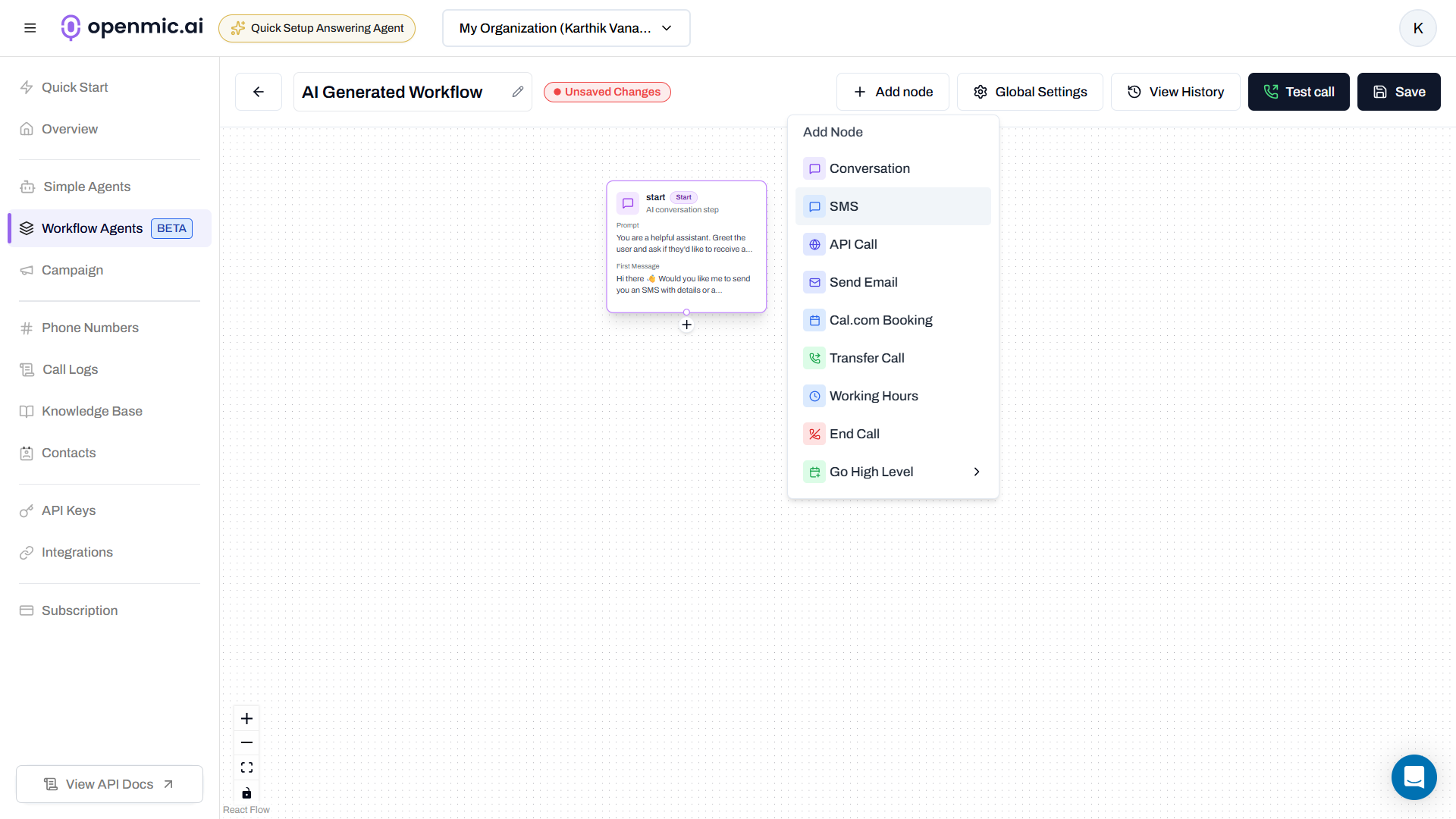 ***
### Step 4: Select SMS Node
From the node types, click on **SMS** to add an SMS node to your workflow.
***
### Step 5: Configure the SMS Node
Click on the newly added SMS node to open its configuration panel.
***
### Step 4: Select SMS Node
From the node types, click on **SMS** to add an SMS node to your workflow.
***
### Step 5: Configure the SMS Node
Click on the newly added SMS node to open its configuration panel.
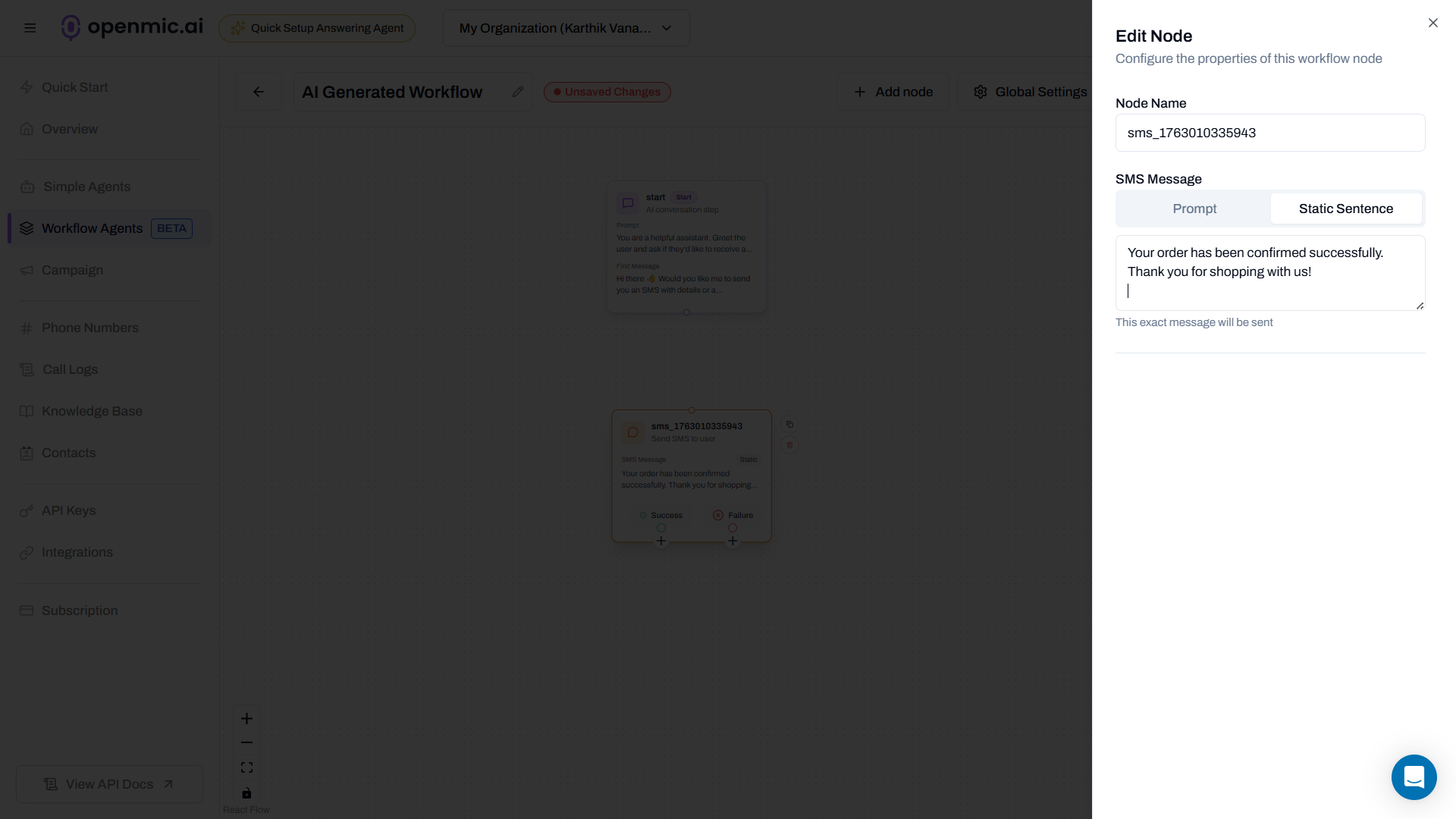 Fill in the required fields:
#### Function Name
Give your SMS step a descriptive name (e.g., "Send Welcome SMS", "Send Confirmation", "Send Follow-up").
#### SMS Message
Choose how the message should be generated:
Use AI-generated messages based on the workflow context and variables.
**How it works:**
* The AI composes the SMS dynamically
* Can incorporate workflow variables and context
* More flexible and personalized
**Example:** "Send an SMS with the appointment details including the date, time, and location from the workflow variables."
Use a fixed, pre-written message.
**How it works:**
* Type your exact message in the text field
* The same message is sent every time this node executes
* Consistent and predictable
**Example:**
```
Your appointment has been confirmed. We look forward to seeing you!
```
***
### Step 6: Save the Workflow
Click the **Save** button in the top right corner of the workflow editor to apply your changes.
The SMS will be sent when the workflow execution reaches this node during the call or process flow.
***
## Configuration Best Practices
* SMS has a 160-character limit per segment
* Keep messages brief and to the point
* Focus on the most important information
* Use clear, simple language
For Simple Agents, write clear descriptions that help the AI understand when to trigger the SMS:
* Be specific about the trigger condition
* Mention key phrases or scenarios
* Avoid ambiguous language
When using **Prompt** mode:
* Clearly specify what information to include
* Test with different conversation scenarios
* Ensure the AI has access to necessary context
* Verify the generated messages make sense
* Test the function with your own phone number first
* Verify messages are clear and complete
* Check that links and formatting work correctly
* Test with different conversation flows
* Ensure timing is appropriate in workflows
Make sure your SMS messages include:
* Your business or agent name
* The purpose of the message
* Any required actions or next steps
* Links if applicable (use URL shorteners for long links)
* Ensure you have consent to send SMS messages
* Include opt-out instructions for marketing messages
* Follow SMS compliance regulations (TCPA, GDPR, etc.)
* Honor customer communication preferences
***
## Use Cases and Examples
**Scenario:** Customer books an appointment during the call
**Function Description:**
"Use this when a customer books an appointment and requests a text confirmation"
**SMS Message (Prompt):**
"Send an SMS confirming the appointment with the date, time, and location we discussed"
**SMS Message (Static):**
```
Your appointment is confirmed! We'll see you soon. Reply STOP to opt out.
```
**Scenario:** Customer asks for a website link or resource
**Function Description:**
"Use this when the customer asks for a link to our website, portal, or specific resource"
**SMS Message (Static):**
```
Here's the link you requested: https://example.com - Thanks for calling!
```
**Scenario:** Customer needs a verification or reference code
**Function Description:**
"Use this when the customer needs their verification code or reference number"
**SMS Message (Prompt):**
"Send an SMS with the verification code or reference number from the system"
**Scenario:** Sending additional information after the call
**Function Description:**
"Use this when the customer requests additional information to be sent via text"
**SMS Message (Prompt):**
"Send a follow-up SMS with the information the customer requested during the call"
**Scenario:** Workflow sends updates at specific stages
**Workflow Use Case:**
Add an SMS node after order confirmation or service completion
**SMS Message (Static):**
```
Your order has been confirmed! Track it here: https://tracking.example.com
```
***
## Frequently Asked Questions
You can check your call logs and workflow execution history to see if the SMS function was triggered and whether it was sent successfully. Delivery status will be indicated in the logs.
The system will log an error, and the SMS will not be sent. You can review failed attempts in your call logs and analytics.
Each Send SMS function sends to one phone number (typically the customer's number from the call). To send to multiple numbers, you would need to add multiple SMS nodes in a workflow or create multiple function calls.
Standard SMS messages have a 160-character limit per segment. Longer messages will be split into multiple segments. Keep messages concise for the best delivery experience.
Yes, you can edit the function configuration at any time. For Simple Agents, go to the Custom Functions tab and edit the function. For Workflows, click on the SMS node to edit its configuration.
***
## Difference: Simple Agents vs Workflow Agents
**When to Use:**
* Dynamic, conversation-based SMS sending
* AI decides when to send based on conversation flow
* Multiple SMS functions for different scenarios
**How It Works:**
* Agent uses AI to determine when conditions are met
* Triggered by conversation context and customer requests
* More flexible and adaptive
**When to Use:**
* Predetermined process with specific SMS steps
* SMS sent at specific points in the workflow
* Automated, predictable messaging
**How It Works:**
* SMS sent when workflow execution reaches the node
* Part of a structured, sequential process
* More controlled and predictable
***
## Need Help?
If you encounter issues or have questions about the Send SMS function:
* Test the function with your own phone number first
* Review your call logs and workflow execution history
* Verify the phone number format is correct
* Check that your SMS function description is clear (for Simple Agents)
* Ensure your workflow is saved and published (for Workflow Agents)
For technical support or questions about SMS compliance, contact our support team.
Fill in the required fields:
#### Function Name
Give your SMS step a descriptive name (e.g., "Send Welcome SMS", "Send Confirmation", "Send Follow-up").
#### SMS Message
Choose how the message should be generated:
Use AI-generated messages based on the workflow context and variables.
**How it works:**
* The AI composes the SMS dynamically
* Can incorporate workflow variables and context
* More flexible and personalized
**Example:** "Send an SMS with the appointment details including the date, time, and location from the workflow variables."
Use a fixed, pre-written message.
**How it works:**
* Type your exact message in the text field
* The same message is sent every time this node executes
* Consistent and predictable
**Example:**
```
Your appointment has been confirmed. We look forward to seeing you!
```
***
### Step 6: Save the Workflow
Click the **Save** button in the top right corner of the workflow editor to apply your changes.
The SMS will be sent when the workflow execution reaches this node during the call or process flow.
***
## Configuration Best Practices
* SMS has a 160-character limit per segment
* Keep messages brief and to the point
* Focus on the most important information
* Use clear, simple language
For Simple Agents, write clear descriptions that help the AI understand when to trigger the SMS:
* Be specific about the trigger condition
* Mention key phrases or scenarios
* Avoid ambiguous language
When using **Prompt** mode:
* Clearly specify what information to include
* Test with different conversation scenarios
* Ensure the AI has access to necessary context
* Verify the generated messages make sense
* Test the function with your own phone number first
* Verify messages are clear and complete
* Check that links and formatting work correctly
* Test with different conversation flows
* Ensure timing is appropriate in workflows
Make sure your SMS messages include:
* Your business or agent name
* The purpose of the message
* Any required actions or next steps
* Links if applicable (use URL shorteners for long links)
* Ensure you have consent to send SMS messages
* Include opt-out instructions for marketing messages
* Follow SMS compliance regulations (TCPA, GDPR, etc.)
* Honor customer communication preferences
***
## Use Cases and Examples
**Scenario:** Customer books an appointment during the call
**Function Description:**
"Use this when a customer books an appointment and requests a text confirmation"
**SMS Message (Prompt):**
"Send an SMS confirming the appointment with the date, time, and location we discussed"
**SMS Message (Static):**
```
Your appointment is confirmed! We'll see you soon. Reply STOP to opt out.
```
**Scenario:** Customer asks for a website link or resource
**Function Description:**
"Use this when the customer asks for a link to our website, portal, or specific resource"
**SMS Message (Static):**
```
Here's the link you requested: https://example.com - Thanks for calling!
```
**Scenario:** Customer needs a verification or reference code
**Function Description:**
"Use this when the customer needs their verification code or reference number"
**SMS Message (Prompt):**
"Send an SMS with the verification code or reference number from the system"
**Scenario:** Sending additional information after the call
**Function Description:**
"Use this when the customer requests additional information to be sent via text"
**SMS Message (Prompt):**
"Send a follow-up SMS with the information the customer requested during the call"
**Scenario:** Workflow sends updates at specific stages
**Workflow Use Case:**
Add an SMS node after order confirmation or service completion
**SMS Message (Static):**
```
Your order has been confirmed! Track it here: https://tracking.example.com
```
***
## Frequently Asked Questions
You can check your call logs and workflow execution history to see if the SMS function was triggered and whether it was sent successfully. Delivery status will be indicated in the logs.
The system will log an error, and the SMS will not be sent. You can review failed attempts in your call logs and analytics.
Each Send SMS function sends to one phone number (typically the customer's number from the call). To send to multiple numbers, you would need to add multiple SMS nodes in a workflow or create multiple function calls.
Standard SMS messages have a 160-character limit per segment. Longer messages will be split into multiple segments. Keep messages concise for the best delivery experience.
Yes, you can edit the function configuration at any time. For Simple Agents, go to the Custom Functions tab and edit the function. For Workflows, click on the SMS node to edit its configuration.
***
## Difference: Simple Agents vs Workflow Agents
**When to Use:**
* Dynamic, conversation-based SMS sending
* AI decides when to send based on conversation flow
* Multiple SMS functions for different scenarios
**How It Works:**
* Agent uses AI to determine when conditions are met
* Triggered by conversation context and customer requests
* More flexible and adaptive
**When to Use:**
* Predetermined process with specific SMS steps
* SMS sent at specific points in the workflow
* Automated, predictable messaging
**How It Works:**
* SMS sent when workflow execution reaches the node
* Part of a structured, sequential process
* More controlled and predictable
***
## Need Help?
If you encounter issues or have questions about the Send SMS function:
* Test the function with your own phone number first
* Review your call logs and workflow execution history
* Verify the phone number format is correct
* Check that your SMS function description is clear (for Simple Agents)
* Ensure your workflow is saved and published (for Workflow Agents)
For technical support or questions about SMS compliance, contact our support team.