> ## Documentation Index
> Fetch the complete documentation index at: https://docs.openmic.ai/llms.txt
> Use this file to discover all available pages before exploring further.
# Voicemail Detection
> Learn how to set up voicemail detection and personalize the messages your AI agents and workflows leave when reaching voicemail.
export const ArcadeEmbed = ({url, title}) => {
return
;
};
**Never Miss an Opportunity**: Voicemail detection enables your AI agents and workflows to intelligently detect when a call reaches voicemail and leave personalized messages, ensuring your communication reaches your audience even when they can't answer.
## Interactive Demo
See how to set up voicemail detection and custom messages for both simple agents and workflow agents:
***
## Overview
Voicemail detection allows your AI agents to automatically detect when a call reaches voicemail. You can configure the agent to either hang up or leave a custom voicemail message, ensuring your communication reaches recipients even when they can't answer.
***
## Set Up Voicemail Detection for Simple Agents
Follow these steps to configure voicemail detection for your AI voice agent:
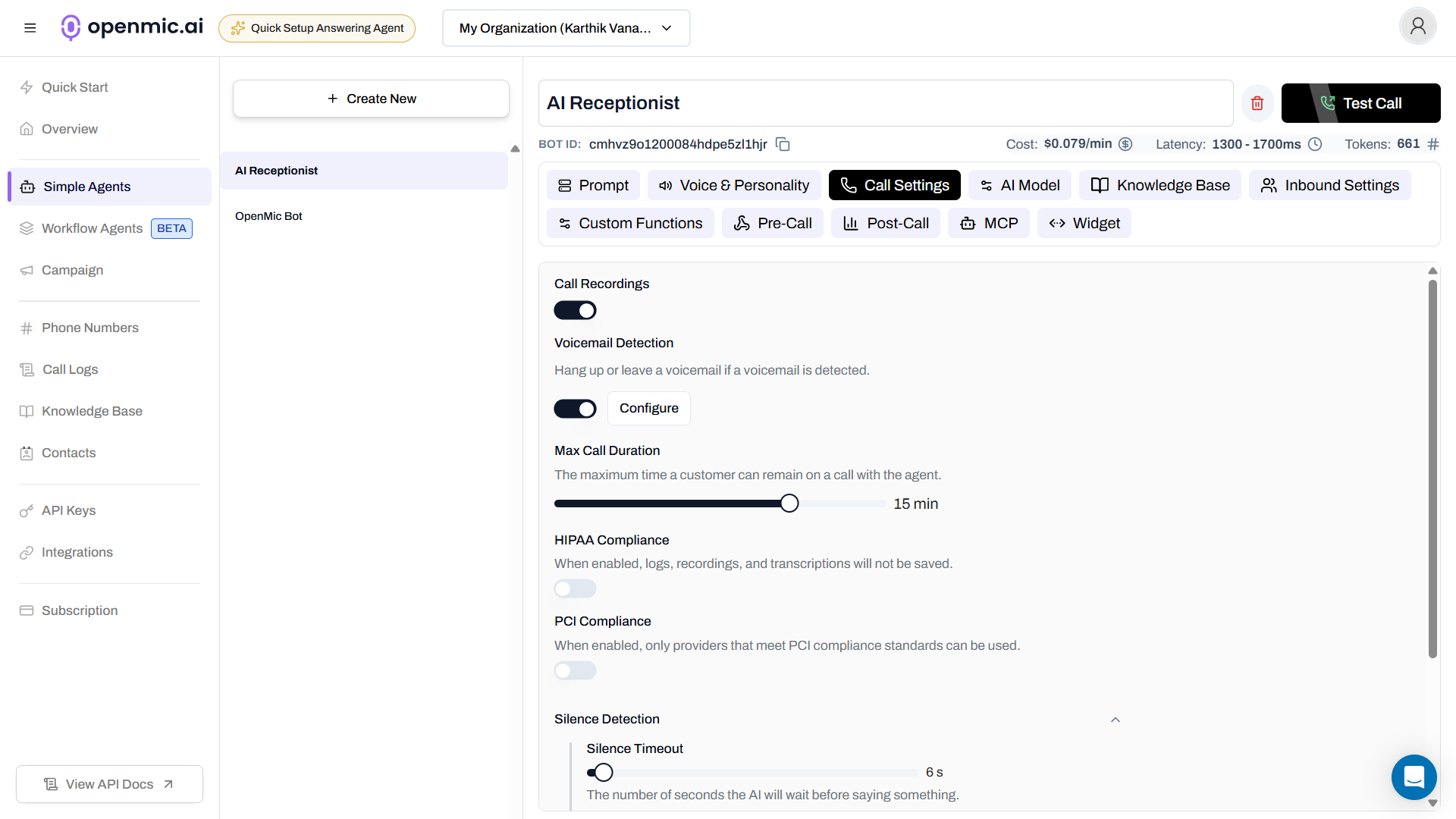
### Step 1: Navigate to Simple Agents
From your dashboard sidebar, click on **Simple Agents**.
 ***
### Step 2: Select Your Agent
Click on the agent you want to configure from the list.
***
### Step 3: Open Call Settings
Click on the **Call Settings** tab in the agent configuration.
***
### Step 4: Enable Voicemail Detection
1. Locate the **Voicemail Detection** section
2. Toggle the switch to **ON**
3. Click the **Configure** button
***
### Step 2: Select Your Agent
Click on the agent you want to configure from the list.
***
### Step 3: Open Call Settings
Click on the **Call Settings** tab in the agent configuration.
***
### Step 4: Enable Voicemail Detection
1. Locate the **Voicemail Detection** section
2. Toggle the switch to **ON**
3. Click the **Configure** button
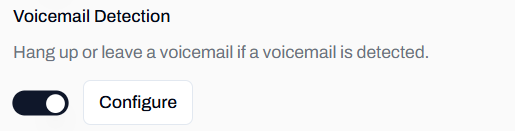 When enabled, the agent will automatically detect voicemail and perform the action you configure.
***
## Set Up Voicemail Detection for Workflows
Follow these steps to configure voicemail detection for your workflow agent:
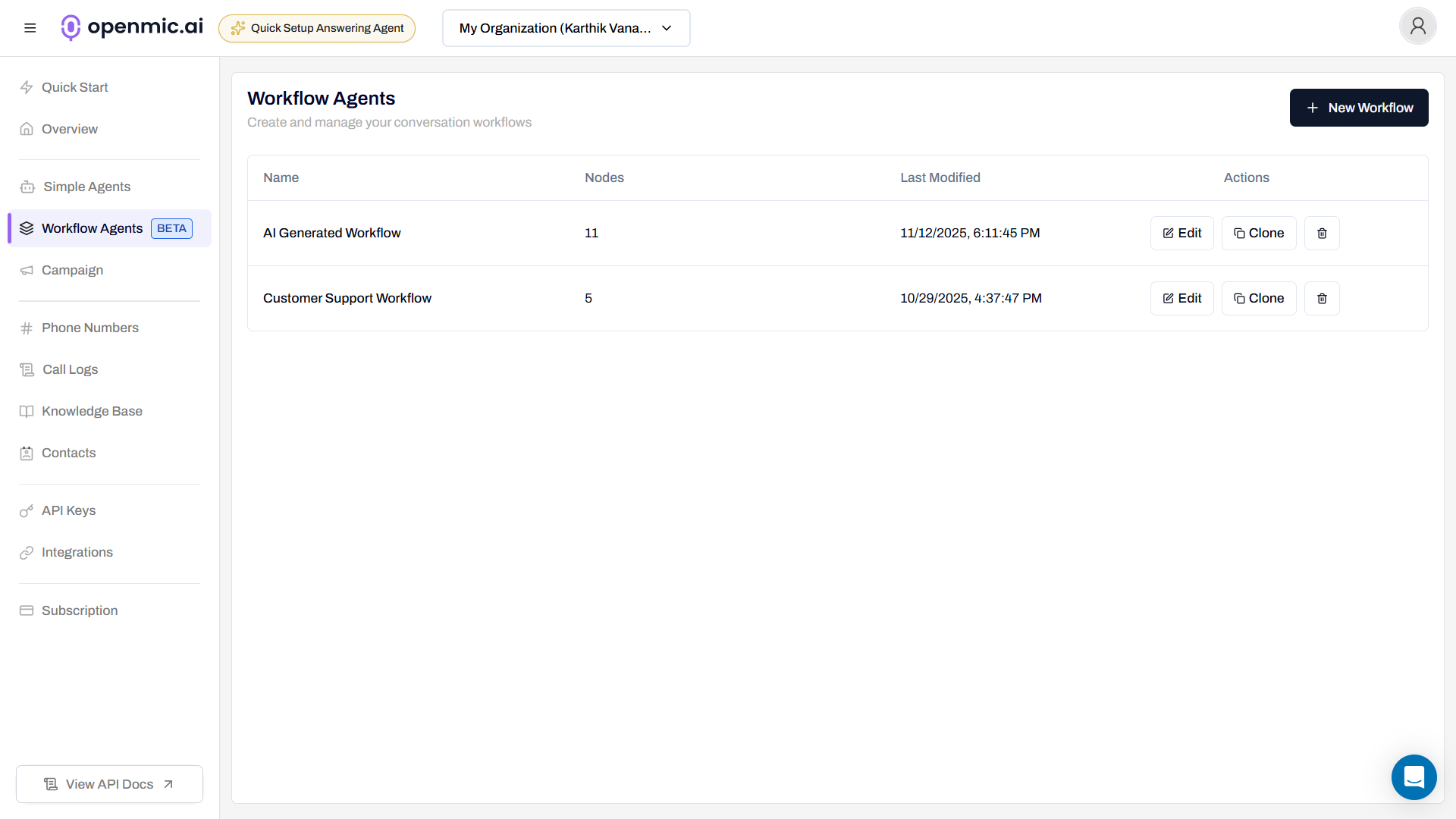
### Step 1: Navigate to Workflow Agents
From your dashboard sidebar, click on **Workflow Agents**.
When enabled, the agent will automatically detect voicemail and perform the action you configure.
***
## Set Up Voicemail Detection for Workflows
Follow these steps to configure voicemail detection for your workflow agent:
### Step 1: Navigate to Workflow Agents
From your dashboard sidebar, click on **Workflow Agents**.
 ***
### Step 2: Select Your Workflow
Click on the workflow you want to configure from the list.
***
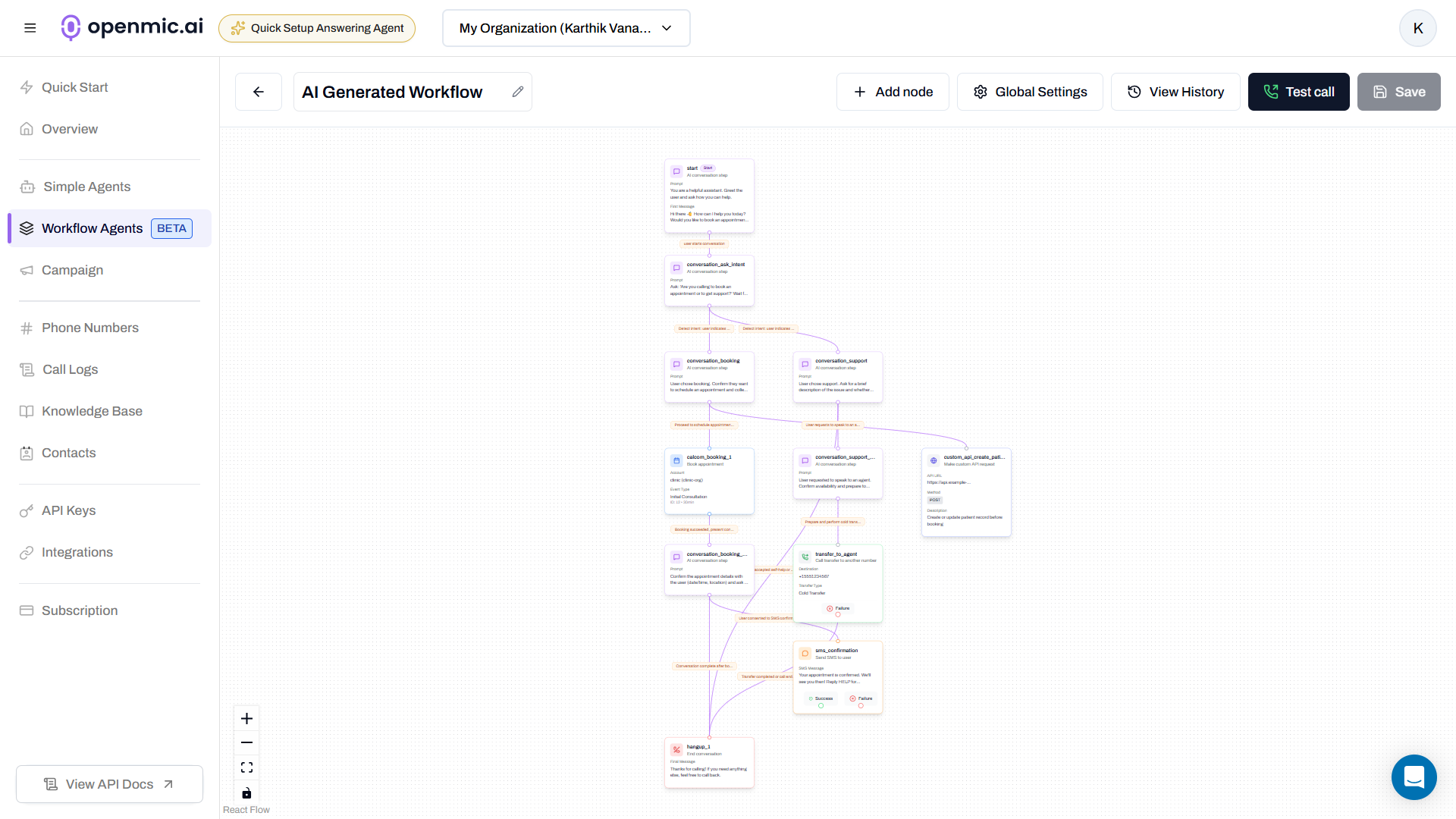
### Step 3: Open Global Settings
In the workflow editor, click the **Global Settings** button in the top right corner.
***
### Step 2: Select Your Workflow
Click on the workflow you want to configure from the list.
***
### Step 3: Open Global Settings
In the workflow editor, click the **Global Settings** button in the top right corner.
 ***
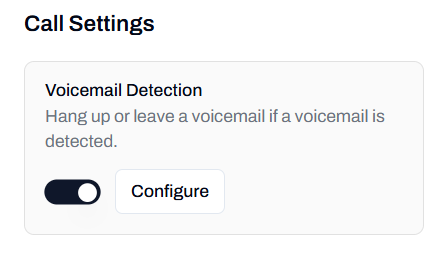
### Step 4: Enable Voicemail Detection
1. In the Global Settings panel, locate the **Call Settings** section
2. Find the **Voicemail Detection** option
3. Toggle the switch to **ON**
4. Click the **Configure** button
***
### Step 4: Enable Voicemail Detection
1. In the Global Settings panel, locate the **Call Settings** section
2. Find the **Voicemail Detection** option
3. Toggle the switch to **ON**
4. Click the **Configure** button
 ***
### Step 5: Save the Workflow
Click the **Save** button in the top right corner to apply your changes.
***
## Configure Voicemail Detection
After enabling voicemail detection (for both Simple Agents and Workflows), you'll need to configure how it behaves:
***
### Step 5: Save the Workflow
Click the **Save** button in the top right corner to apply your changes.
***
## Configure Voicemail Detection
After enabling voicemail detection (for both Simple Agents and Workflows), you'll need to configure how it behaves:
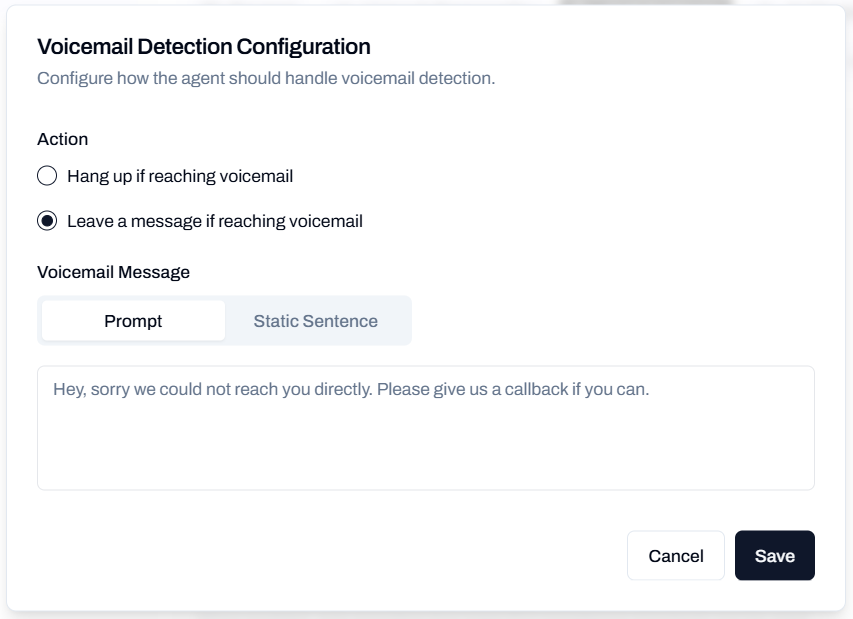 ### Action
Choose what happens when voicemail is detected:
The agent will immediately end the call when voicemail is detected without leaving a message.
**Best for:**
* When you only want to reach live contacts
* Compliance requirements that restrict automated voicemail messages
* High-volume calling campaigns
The agent will deliver a custom voicemail message when voicemail is detected.
**Best for:**
* Ensuring your communication reaches the recipient
* Appointment reminders and follow-ups
* Customer service callbacks
* Sales and lead nurturing
***
### Voicemail Message
If you selected "Leave a message if reaching voicemail", configure your message:
Use dynamic, AI-generated messages based on the conversation context and agent's prompt instructions.
**How it works:**
* The AI composes the voicemail message on the fly
* Can adapt based on conversation history
* More natural and contextual
**Example use case:** "Generate a voicemail explaining why I called based on the customer's recent support ticket."
Use a fixed, pre-written message that will be delivered every time.
**How it works:**
* Type your exact message in the text field
* The same message is used for every voicemail
* Consistent and predictable
**Example:**
```
Hey, sorry we could not reach you directly. Please give us a callback if you can.
```
Keep voicemail messages brief (20-30 seconds) and include a clear call-to-action with your callback number or next steps.
***
### Save Configuration
Click **Save** to apply your voicemail detection configuration.
For workflows, remember to also click **Save** on the workflow editor after configuring voicemail detection.
***
## Best Practices
* Aim for 20-30 seconds maximum
* State your name and company clearly
* Provide a clear call-to-action
* Include a callback number or next step
* Call the agent yourself and let it go to voicemail
* Test with different voicemail systems (mobile, landline)
* Verify the message is complete and sounds natural
* Check that the right action (hang up or leave message) is triggered
* **Hang up** for high-volume outbound campaigns where you only need live conversations
* **Leave message** for important communications like appointment reminders, follow-ups, or customer service
* Use conversational language
* Avoid complex terminology or long sentences
* Read the message aloud to check if it sounds natural
* Include specific information (reason for call, action needed)
***
## Frequently Asked Questions
Voicemail detection is highly accurate across most phone systems and carriers. The system listens for voicemail indicators like beeps, greetings, and audio patterns. If you experience issues, test with different carriers and review your call logs.
When using the **Prompt** option, the AI can incorporate context from the conversation. With **Static Sentence**, the message is fixed and cannot include dynamic variables.
If the system cannot confidently detect voicemail, it will continue with the normal call flow. You can review detection performance in your call logs and analytics.
Yes, you can update your voicemail configuration at any time. Changes will apply to all new calls immediately.
***
## Need Help?
If you encounter issues or have questions about voicemail detection:
* Review your call logs to see detection performance
* Test with different phone numbers and carriers
* Contact support for assistance with configuration
* Check that voicemail detection is enabled in Call Settings
For technical support, contact our support team.
### Action
Choose what happens when voicemail is detected:
The agent will immediately end the call when voicemail is detected without leaving a message.
**Best for:**
* When you only want to reach live contacts
* Compliance requirements that restrict automated voicemail messages
* High-volume calling campaigns
The agent will deliver a custom voicemail message when voicemail is detected.
**Best for:**
* Ensuring your communication reaches the recipient
* Appointment reminders and follow-ups
* Customer service callbacks
* Sales and lead nurturing
***
### Voicemail Message
If you selected "Leave a message if reaching voicemail", configure your message:
Use dynamic, AI-generated messages based on the conversation context and agent's prompt instructions.
**How it works:**
* The AI composes the voicemail message on the fly
* Can adapt based on conversation history
* More natural and contextual
**Example use case:** "Generate a voicemail explaining why I called based on the customer's recent support ticket."
Use a fixed, pre-written message that will be delivered every time.
**How it works:**
* Type your exact message in the text field
* The same message is used for every voicemail
* Consistent and predictable
**Example:**
```
Hey, sorry we could not reach you directly. Please give us a callback if you can.
```
Keep voicemail messages brief (20-30 seconds) and include a clear call-to-action with your callback number or next steps.
***
### Save Configuration
Click **Save** to apply your voicemail detection configuration.
For workflows, remember to also click **Save** on the workflow editor after configuring voicemail detection.
***
## Best Practices
* Aim for 20-30 seconds maximum
* State your name and company clearly
* Provide a clear call-to-action
* Include a callback number or next step
* Call the agent yourself and let it go to voicemail
* Test with different voicemail systems (mobile, landline)
* Verify the message is complete and sounds natural
* Check that the right action (hang up or leave message) is triggered
* **Hang up** for high-volume outbound campaigns where you only need live conversations
* **Leave message** for important communications like appointment reminders, follow-ups, or customer service
* Use conversational language
* Avoid complex terminology or long sentences
* Read the message aloud to check if it sounds natural
* Include specific information (reason for call, action needed)
***
## Frequently Asked Questions
Voicemail detection is highly accurate across most phone systems and carriers. The system listens for voicemail indicators like beeps, greetings, and audio patterns. If you experience issues, test with different carriers and review your call logs.
When using the **Prompt** option, the AI can incorporate context from the conversation. With **Static Sentence**, the message is fixed and cannot include dynamic variables.
If the system cannot confidently detect voicemail, it will continue with the normal call flow. You can review detection performance in your call logs and analytics.
Yes, you can update your voicemail configuration at any time. Changes will apply to all new calls immediately.
***
## Need Help?
If you encounter issues or have questions about voicemail detection:
* Review your call logs to see detection performance
* Test with different phone numbers and carriers
* Contact support for assistance with configuration
* Check that voicemail detection is enabled in Call Settings
For technical support, contact our support team.