> ## Documentation Index
> Fetch the complete documentation index at: https://docs.openmic.ai/llms.txt
> Use this file to discover all available pages before exploring further.
# Zoho CRM Integration
> Connect your OpenMic assistant to Zoho CRM to manage leads, contacts, events, notes, and search records without leaving the call.
The **Zoho CRM** integration lets your OpenMic agents manage leads, contacts, events, notes, and search records directly from live conversations. After connecting Zoho CRM, you can add custom functions to your agents to handle a wide range of CRM operations.
***
## Prerequisites
Before you connect Zoho CRM, make sure you have:
1. **An active Zoho CRM account** with API access.
2. **An OpenMic account** with at least one agent created.
3. Access to the **OpenMic Dashboard** to manage integrations and custom functions.
***
## Step 1: Connect Zoho CRM
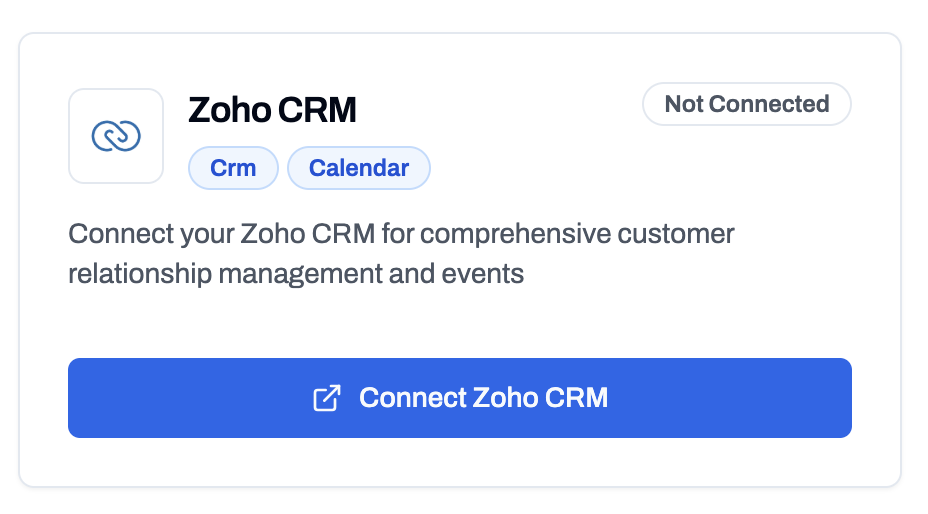
1. In the [OpenMic Dashboard](https://app.openmic.ai), go to **Integrations**.
2. Find the **Zoho CRM** card.
3. Click **Connect** and complete the Zoho CRM authorization flow.
4. When successful, the card will show **Connected**.
 ***
## Step 2: Add Zoho CRM Functions to an Agent
1. Go to **Dashboard → Simple Agents**.
2. Select the agent you want to configure.
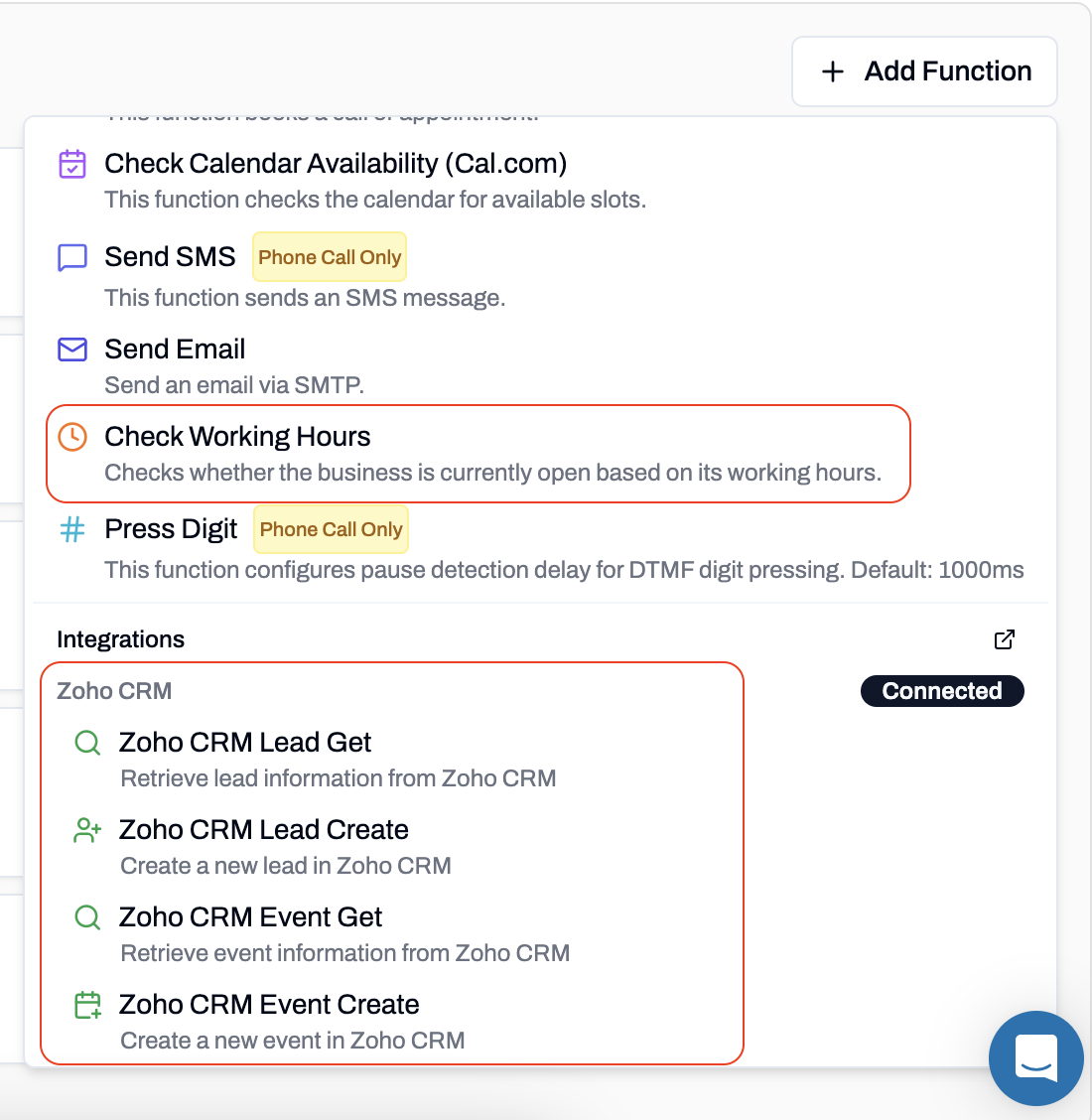
3. Open the **Custom Functions** tab and click **Add Function**.
4. Add the Zoho CRM functions you need (see details for each below).
5. Click **Create Function** to save each selection.
***
## Step 2: Add Zoho CRM Functions to an Agent
1. Go to **Dashboard → Simple Agents**.
2. Select the agent you want to configure.
3. Open the **Custom Functions** tab and click **Add Function**.
4. Add the Zoho CRM functions you need (see details for each below).
5. Click **Create Function** to save each selection.
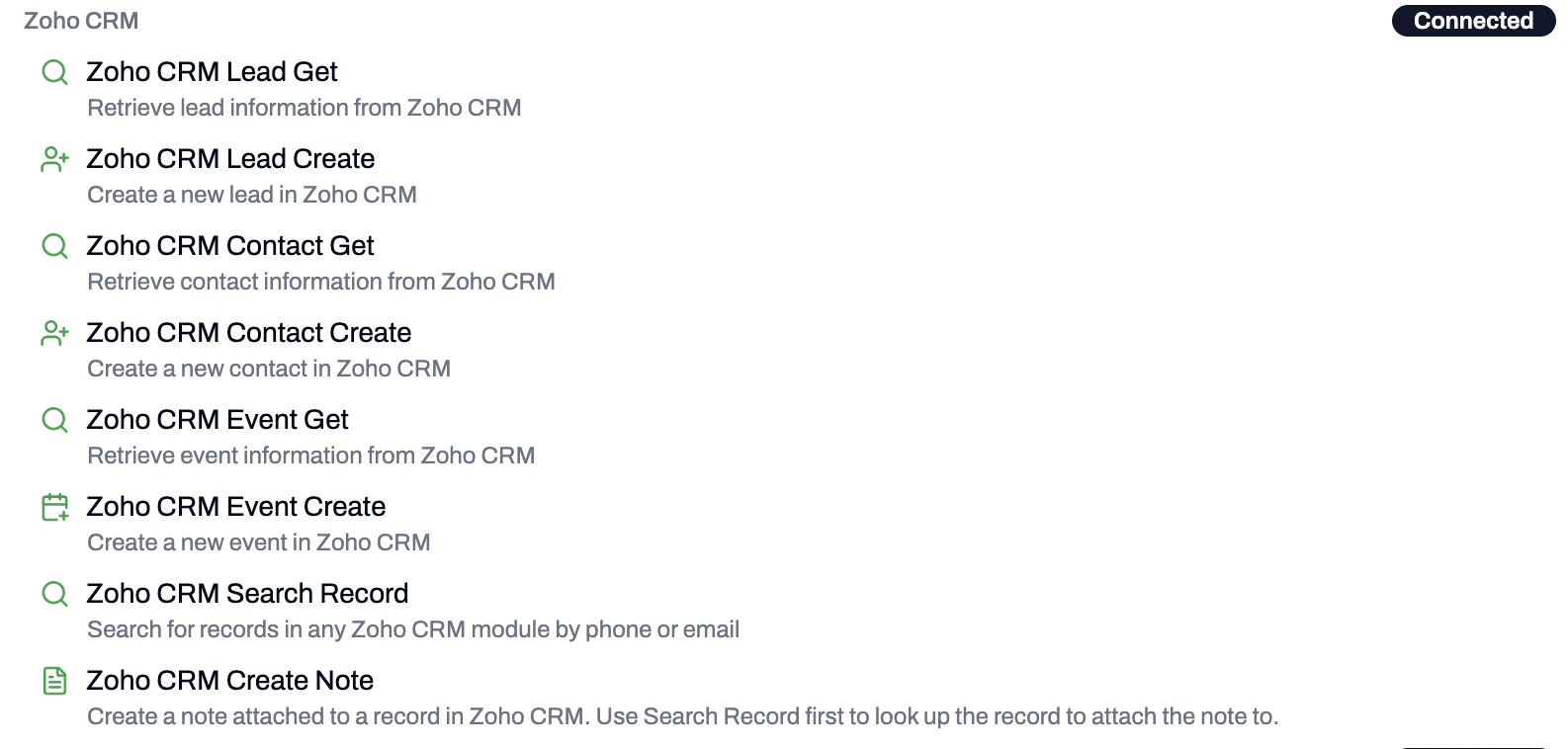 ***
## Available Functions
### Lead Get
Look up existing leads in Zoho CRM by phone number or email. The agent can use the caller's session phone number by default.
* **Function Name**: `zohocrm_lookup_lead`
* **Search Type** (required): Phone Number or Email
* **Use caller's session phone number by default**: When checked, the agent automatically uses the best phone number provided by the caller.
### Lead Create
Create a new lead in Zoho CRM when one is not found.
* **Function Name**: `create_zohocrm_lead`
* **Lead Owner**: Optionally assign the lead to a specific owner. If not selected, defaults to the authenticated user.
* **Use caller's session phone number by default**: When checked, the agent automatically uses the best phone number provided by the caller.
***
## Available Functions
### Lead Get
Look up existing leads in Zoho CRM by phone number or email. The agent can use the caller's session phone number by default.
* **Function Name**: `zohocrm_lookup_lead`
* **Search Type** (required): Phone Number or Email
* **Use caller's session phone number by default**: When checked, the agent automatically uses the best phone number provided by the caller.
### Lead Create
Create a new lead in Zoho CRM when one is not found.
* **Function Name**: `create_zohocrm_lead`
* **Lead Owner**: Optionally assign the lead to a specific owner. If not selected, defaults to the authenticated user.
* **Use caller's session phone number by default**: When checked, the agent automatically uses the best phone number provided by the caller.
 ***
### Contact Get
Retrieve contact information from Zoho CRM by phone number or email.
* **Function Name**: `zohocrm_lookup_contact`
* **Search Type** (required): Phone Number or Email
* **Use caller's session phone number by default**: When checked, the agent automatically uses the best phone number provided by the caller.
***
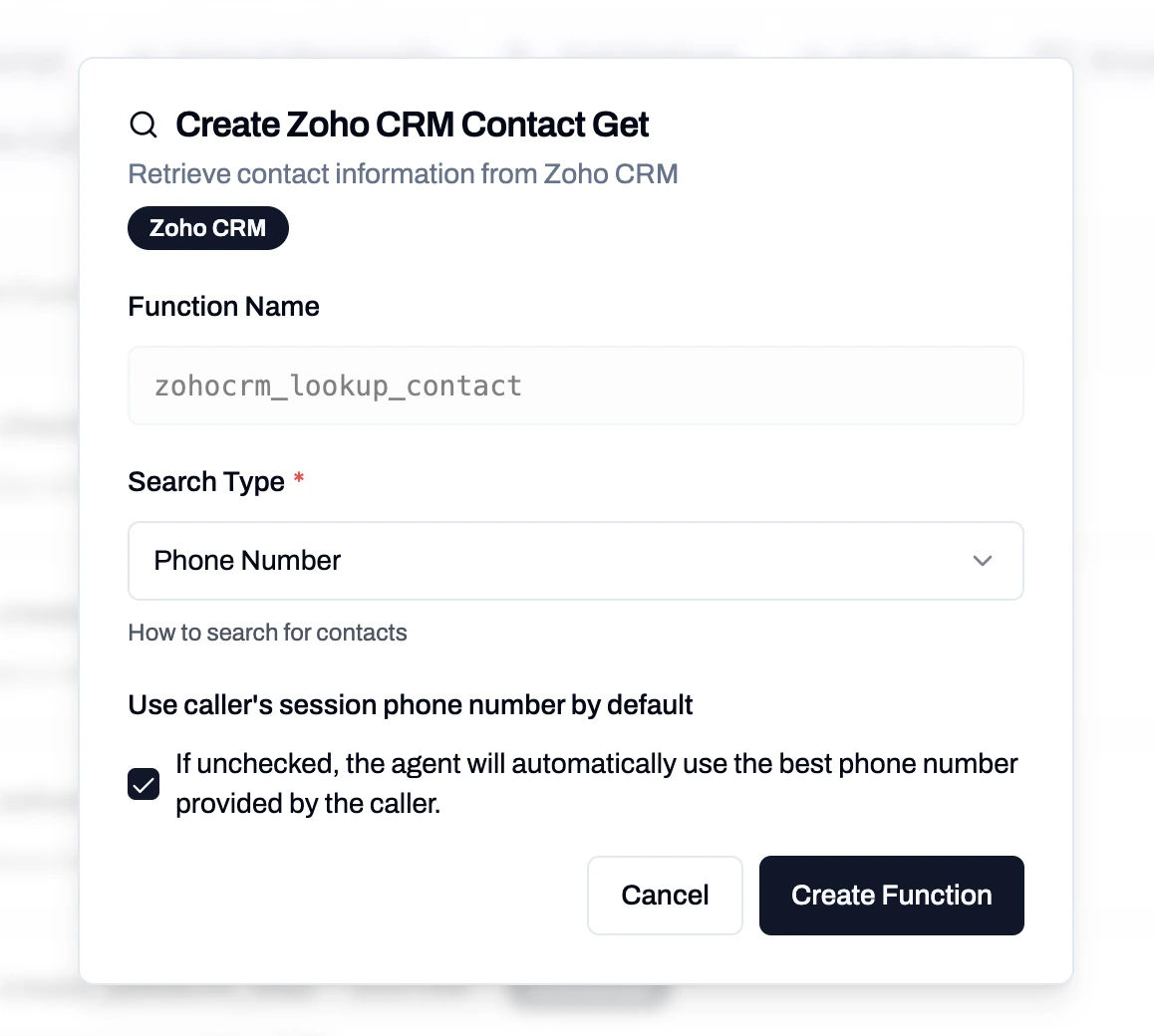
### Contact Get
Retrieve contact information from Zoho CRM by phone number or email.
* **Function Name**: `zohocrm_lookup_contact`
* **Search Type** (required): Phone Number or Email
* **Use caller's session phone number by default**: When checked, the agent automatically uses the best phone number provided by the caller.
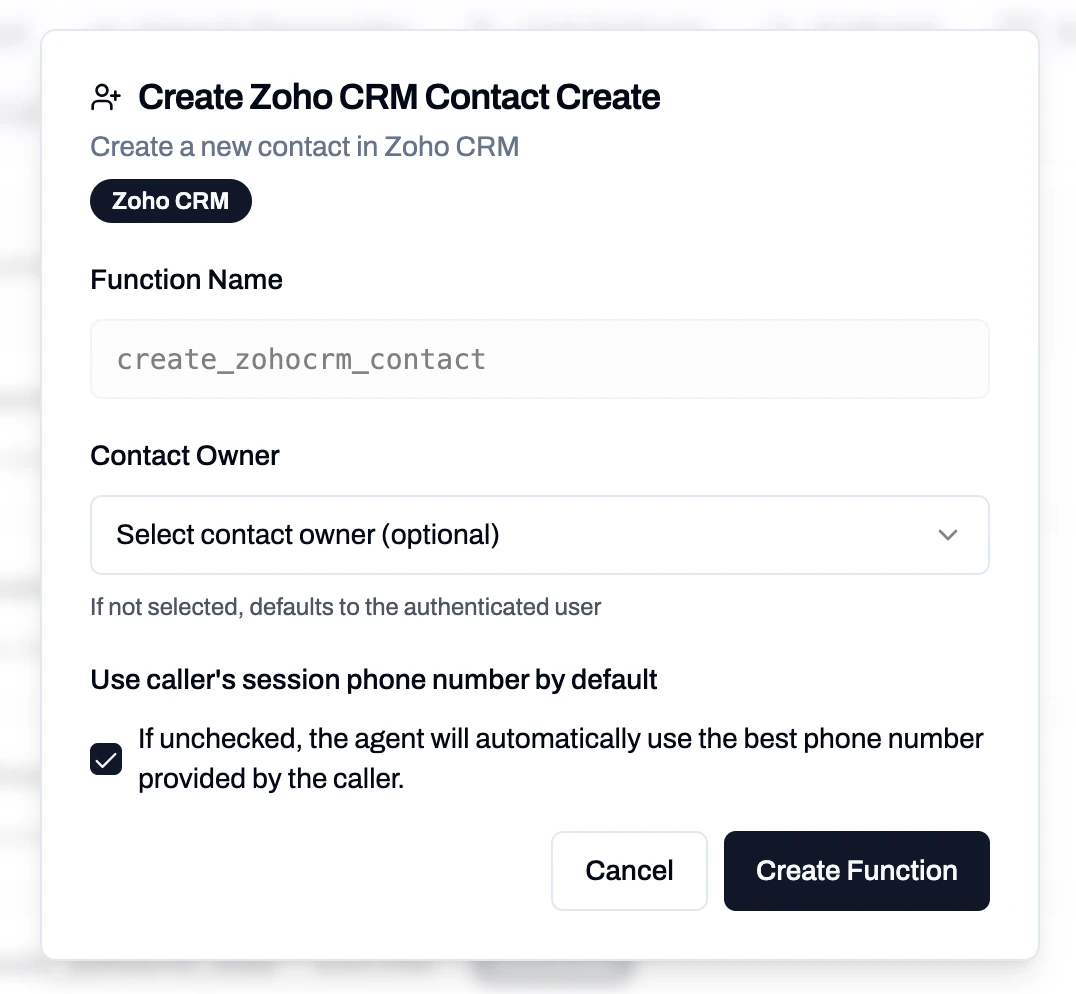
 ### Contact Create
Create a new contact in Zoho CRM.
* **Function Name**: `create_zohocrm_contact`
* **Contact Owner**: Optionally assign the contact to a specific owner. If not selected, defaults to the authenticated user.
* **Use caller's session phone number by default**: When checked, the agent automatically uses the best phone number provided by the caller.
### Contact Create
Create a new contact in Zoho CRM.
* **Function Name**: `create_zohocrm_contact`
* **Contact Owner**: Optionally assign the contact to a specific owner. If not selected, defaults to the authenticated user.
* **Use caller's session phone number by default**: When checked, the agent automatically uses the best phone number provided by the caller.
 ***
### Event Get
Retrieve event information from Zoho CRM.
* **Function Name**: `zohocrm_lookup_event`
* **Ask User for Timezone**: When enabled, the agent will ask the caller for their timezone. When disabled, uses the business timezone directly.
* **Don't Allow Double Booking**: Prevent booking events if there are conflicting events at the same time.
***
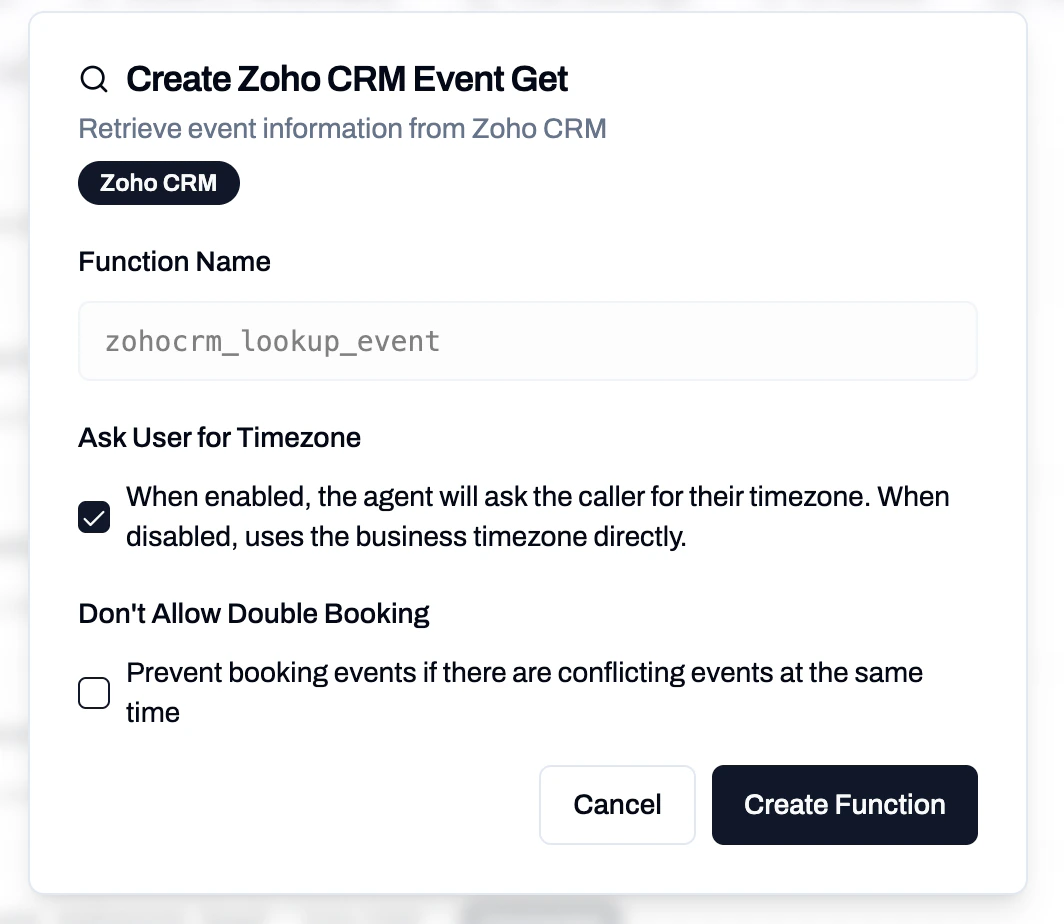
### Event Get
Retrieve event information from Zoho CRM.
* **Function Name**: `zohocrm_lookup_event`
* **Ask User for Timezone**: When enabled, the agent will ask the caller for their timezone. When disabled, uses the business timezone directly.
* **Don't Allow Double Booking**: Prevent booking events if there are conflicting events at the same time.
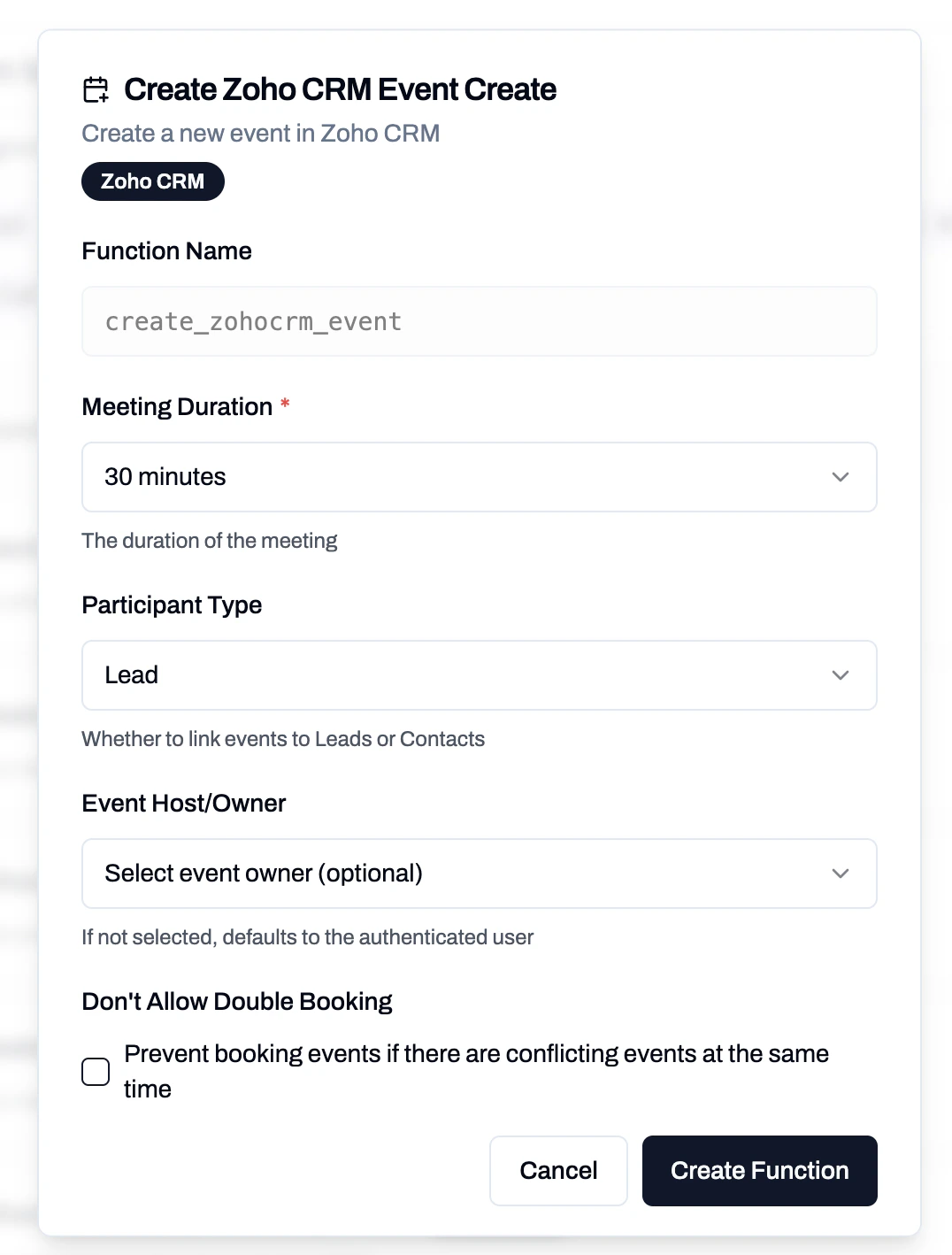
 ### Event Create
Create a new event/meeting in Zoho CRM.
* **Function Name**: `create_zohocrm_event`
* **Meeting Duration** (required): Choose from 15 minutes, 30 minutes, 45 minutes, 1 hour, 1.5 hours, 2 hours, 3 hours, or 4 hours.
* **Participant Type**: Whether to link events to Leads or Contacts.
* **Event Host/Owner**: Optionally assign the event to a specific owner. If not selected, defaults to the authenticated user.
* **Don't Allow Double Booking**: Prevent booking events if there are conflicting events at the same time.
### Event Create
Create a new event/meeting in Zoho CRM.
* **Function Name**: `create_zohocrm_event`
* **Meeting Duration** (required): Choose from 15 minutes, 30 minutes, 45 minutes, 1 hour, 1.5 hours, 2 hours, 3 hours, or 4 hours.
* **Participant Type**: Whether to link events to Leads or Contacts.
* **Event Host/Owner**: Optionally assign the event to a specific owner. If not selected, defaults to the authenticated user.
* **Don't Allow Double Booking**: Prevent booking events if there are conflicting events at the same time.
 ***
### Search Record
Search for records in any Zoho CRM module by phone or email. This is a general-purpose search that works across modules like Leads, Contacts, and more.
* **Function Name**: `zohocrm_search_record`
* **Module** (required): The Zoho CRM module to search in (e.g., Leads, Contacts).
* **Search Type** (required): Phone Number or Email.
* **Use caller's session phone number by default**: When checked, the agent automatically uses the best phone number provided by the caller.
***
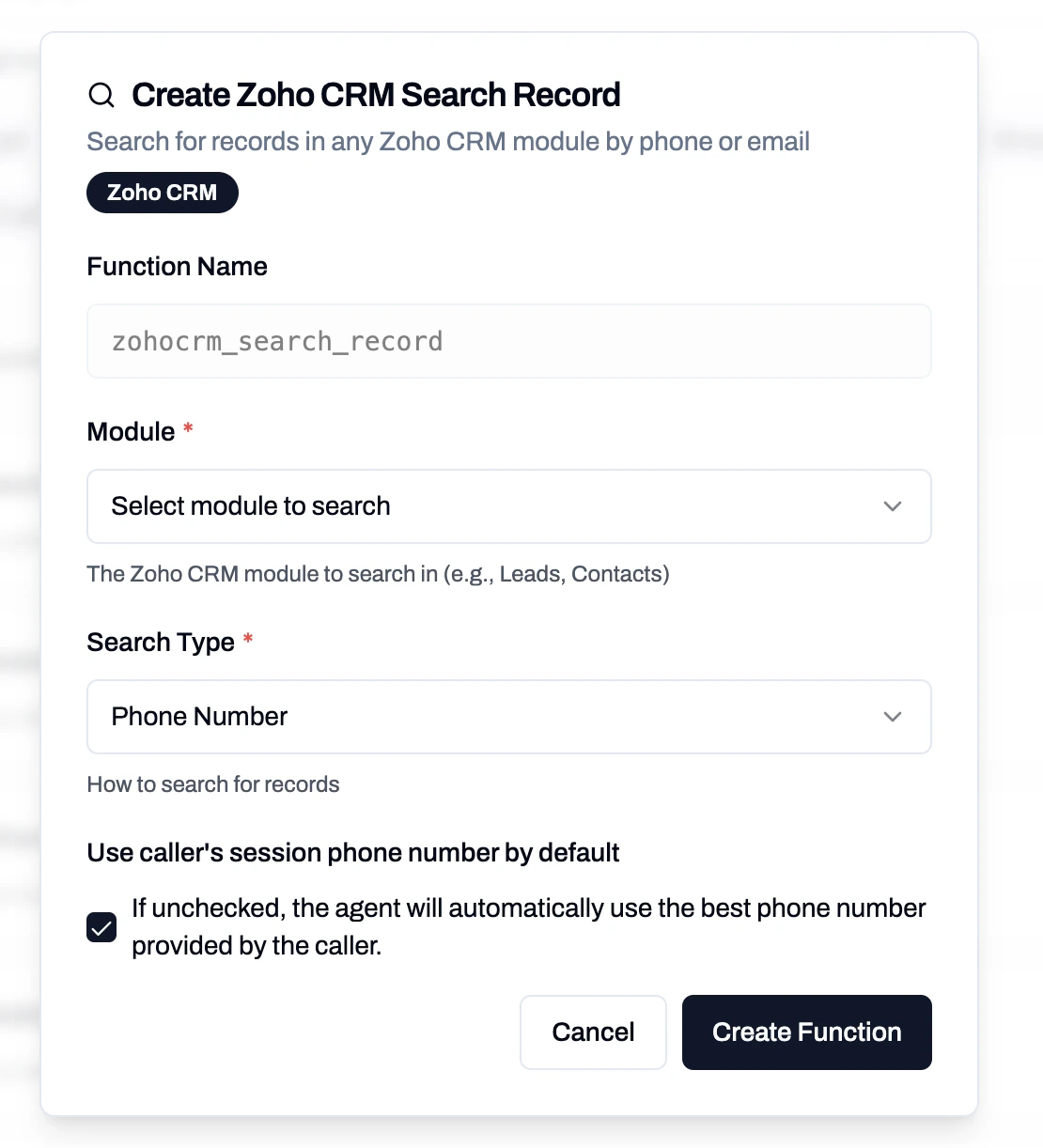
### Search Record
Search for records in any Zoho CRM module by phone or email. This is a general-purpose search that works across modules like Leads, Contacts, and more.
* **Function Name**: `zohocrm_search_record`
* **Module** (required): The Zoho CRM module to search in (e.g., Leads, Contacts).
* **Search Type** (required): Phone Number or Email.
* **Use caller's session phone number by default**: When checked, the agent automatically uses the best phone number provided by the caller.
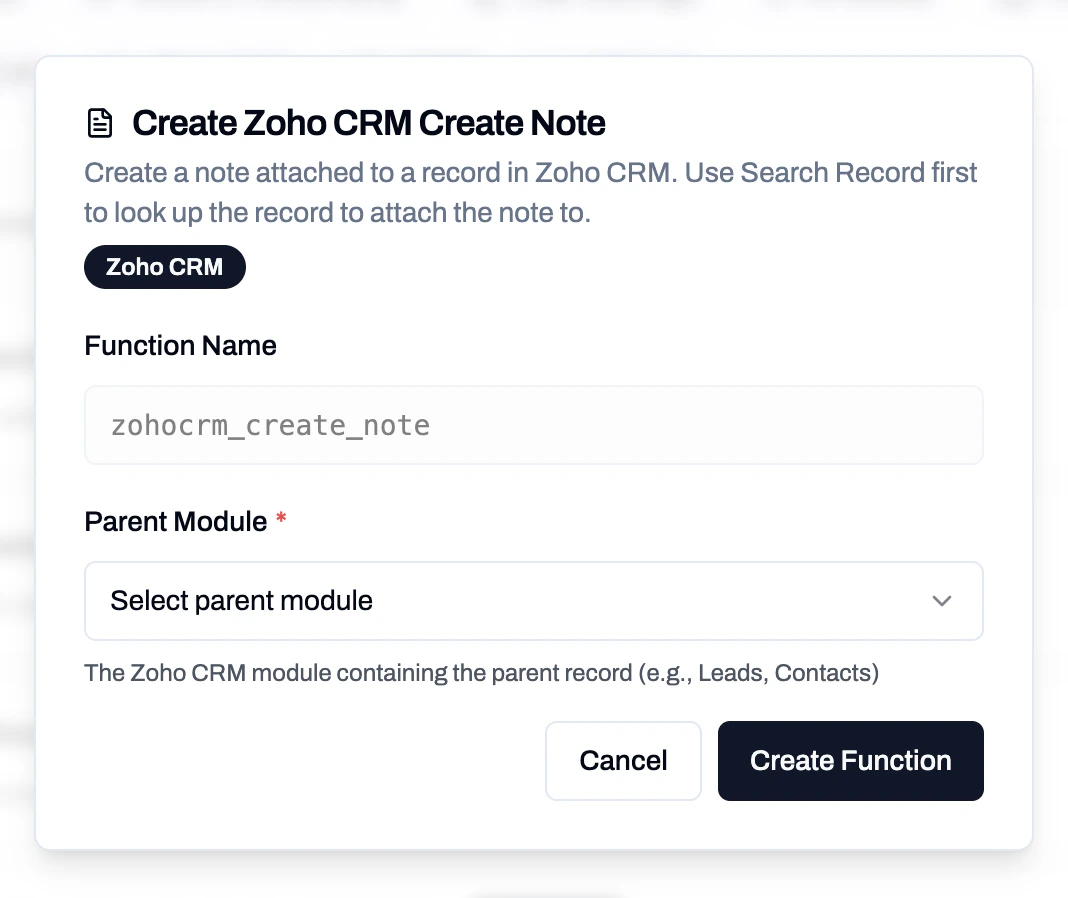
 ### Create Note
Create a note attached to a record in Zoho CRM. Use **Search Record** first to look up the record to attach the note to.
* **Function Name**: `zohocrm_create_note`
* **Parent Module** (required): The Zoho CRM module containing the parent record (e.g., Leads, Contacts).
### Create Note
Create a note attached to a record in Zoho CRM. Use **Search Record** first to look up the record to attach the note to.
* **Function Name**: `zohocrm_create_note`
* **Parent Module** (required): The Zoho CRM module containing the parent record (e.g., Leads, Contacts).
 ***
## Suggested System Prompt
Provide your assistant with clear instructions on how to use the Zoho CRM functions. You can start with this template:
```text theme={null}
You are a helpful scheduling assistant that uses Zoho CRM.
Flow:
1) Collect the caller's name, phone, and email.
2) Use `zohocrm_search_record` or `zohocrm_lookup_lead` / `zohocrm_lookup_contact` to check if they exist; if not, create them with `create_zohocrm_lead` or `create_zohocrm_contact`.
3) Follow configured working hours; do not propose times outside those windows.
4) Ask for preferred times and duration. Use `zohocrm_lookup_event` to check for conflicts when needed.
5) If available, book with `create_zohocrm_event` using the chosen duration. If there is a conflict, propose alternatives within working hours.
6) Use `zohocrm_create_note` to attach any call notes or follow-up details to the relevant record.
7) Confirm date, time, and details before ending the call.
Key rules:
- Always try to find an existing lead or contact before creating a new one.
- Stay inside configured working hours.
- Use Search Record for cross-module lookups when needed.
```
***
## Example Booking Workflow
1. **Record Lookup** – uses **Search Record**, **Lead Get**, or **Contact Get** to find the caller in Zoho CRM.
2. **Record Creation** – if none found, uses **Lead Create** or **Contact Create** to add the caller.
3. **Conflict Check** – uses **Event Get** to review existing events/meetings. Enable "Don't Allow Double Booking" to prevent overlapping events.
4. **Create Event/Meeting** – uses **Event Create** to book the meeting with the selected duration, linked to either a Lead or Contact.
5. **Add Notes** – uses **Create Note** to attach call summary or follow-up details to the record.
This workflow helps your agents manage leads, contacts, and meetings efficiently while keeping your Zoho CRM records up to date.
***
## Suggested System Prompt
Provide your assistant with clear instructions on how to use the Zoho CRM functions. You can start with this template:
```text theme={null}
You are a helpful scheduling assistant that uses Zoho CRM.
Flow:
1) Collect the caller's name, phone, and email.
2) Use `zohocrm_search_record` or `zohocrm_lookup_lead` / `zohocrm_lookup_contact` to check if they exist; if not, create them with `create_zohocrm_lead` or `create_zohocrm_contact`.
3) Follow configured working hours; do not propose times outside those windows.
4) Ask for preferred times and duration. Use `zohocrm_lookup_event` to check for conflicts when needed.
5) If available, book with `create_zohocrm_event` using the chosen duration. If there is a conflict, propose alternatives within working hours.
6) Use `zohocrm_create_note` to attach any call notes or follow-up details to the relevant record.
7) Confirm date, time, and details before ending the call.
Key rules:
- Always try to find an existing lead or contact before creating a new one.
- Stay inside configured working hours.
- Use Search Record for cross-module lookups when needed.
```
***
## Example Booking Workflow
1. **Record Lookup** – uses **Search Record**, **Lead Get**, or **Contact Get** to find the caller in Zoho CRM.
2. **Record Creation** – if none found, uses **Lead Create** or **Contact Create** to add the caller.
3. **Conflict Check** – uses **Event Get** to review existing events/meetings. Enable "Don't Allow Double Booking" to prevent overlapping events.
4. **Create Event/Meeting** – uses **Event Create** to book the meeting with the selected duration, linked to either a Lead or Contact.
5. **Add Notes** – uses **Create Note** to attach call summary or follow-up details to the record.
This workflow helps your agents manage leads, contacts, and meetings efficiently while keeping your Zoho CRM records up to date.