> ## Documentation Index
> Fetch the complete documentation index at: https://docs.openmic.ai/llms.txt
> Use this file to discover all available pages before exploring further.
# Knowledge Base
> Enhance your AI agent with contextual information using documents, FAQs, text, and web content
export const ArcadeEmbed = ({url, title}) => {
return
;
};
## Interactive Demo
See how to set up and use a Knowledge Base with both simple agents and workflow agents:
***
## Overview
Knowledge Base allows you to provide your AI agent with access to a collection of information sources that it can reference during conversations. This feature significantly improves response quality by giving your agent the context it needs to answer questions accurately, especially for use cases like customer support, helpdesk, FAQs, and product information.
When a knowledge base is linked to your agent, it automatically retrieves
relevant information during conversations without requiring any prompt
modifications.
## Supported Sources
Your knowledge base supports four types of content sources:
Upload PDF documents up to 5MB
Create FAQ flashcards with questions and answers
Add custom text snippets and information
Import content from website URLs
## How It Works
When you link a knowledge base to your agent:
1. **Automatic Processing**: Content is chunked, embedded, and stored in a vector database
2. **Contextual Retrieval**: During conversations, the agent searches for relevant information using the conversation transcript
3. **Seamless Integration**: Retrieved information is automatically provided to the AI without manual intervention
4. **Real-Time Access**: Information is fetched and used in real-time during each response generation
The knowledge base uses the conversation transcript (not the prompt) to find
the most relevant chunks of information.
## Creating a Knowledge Base
### Step 1: Access Knowledge Base
From your dashboard sidebar, click on the **Knowledge Base** section.
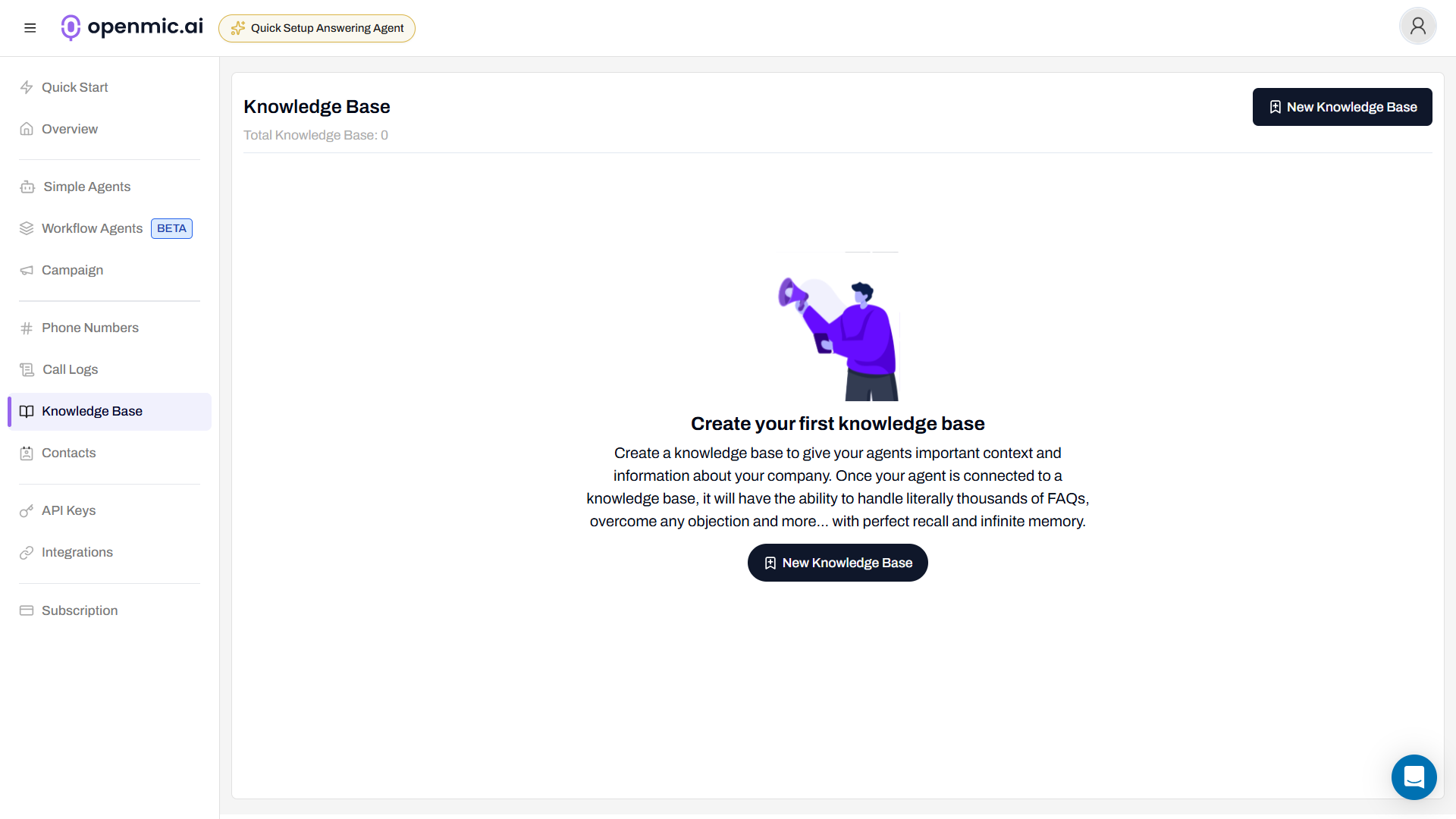 Click the **"New Knowledge Base"** button and enter a descriptive name for
your knowledge base.
Click the **"New Knowledge Base"** button and enter a descriptive name for
your knowledge base.
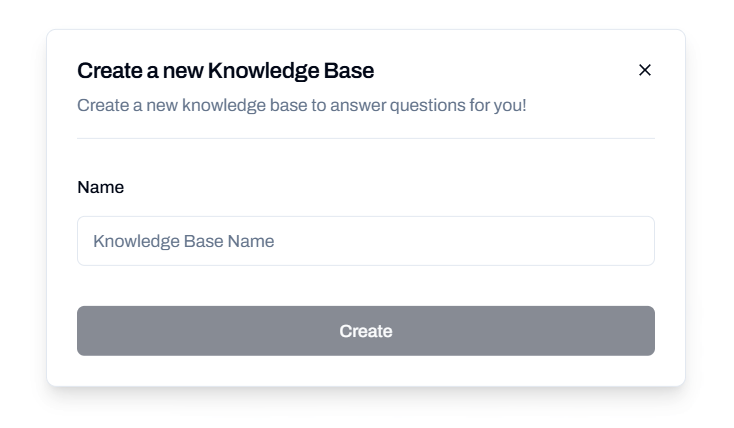 Finalize your new knowledge base by clicking **Create**.
### Step 2: Add Content Sources
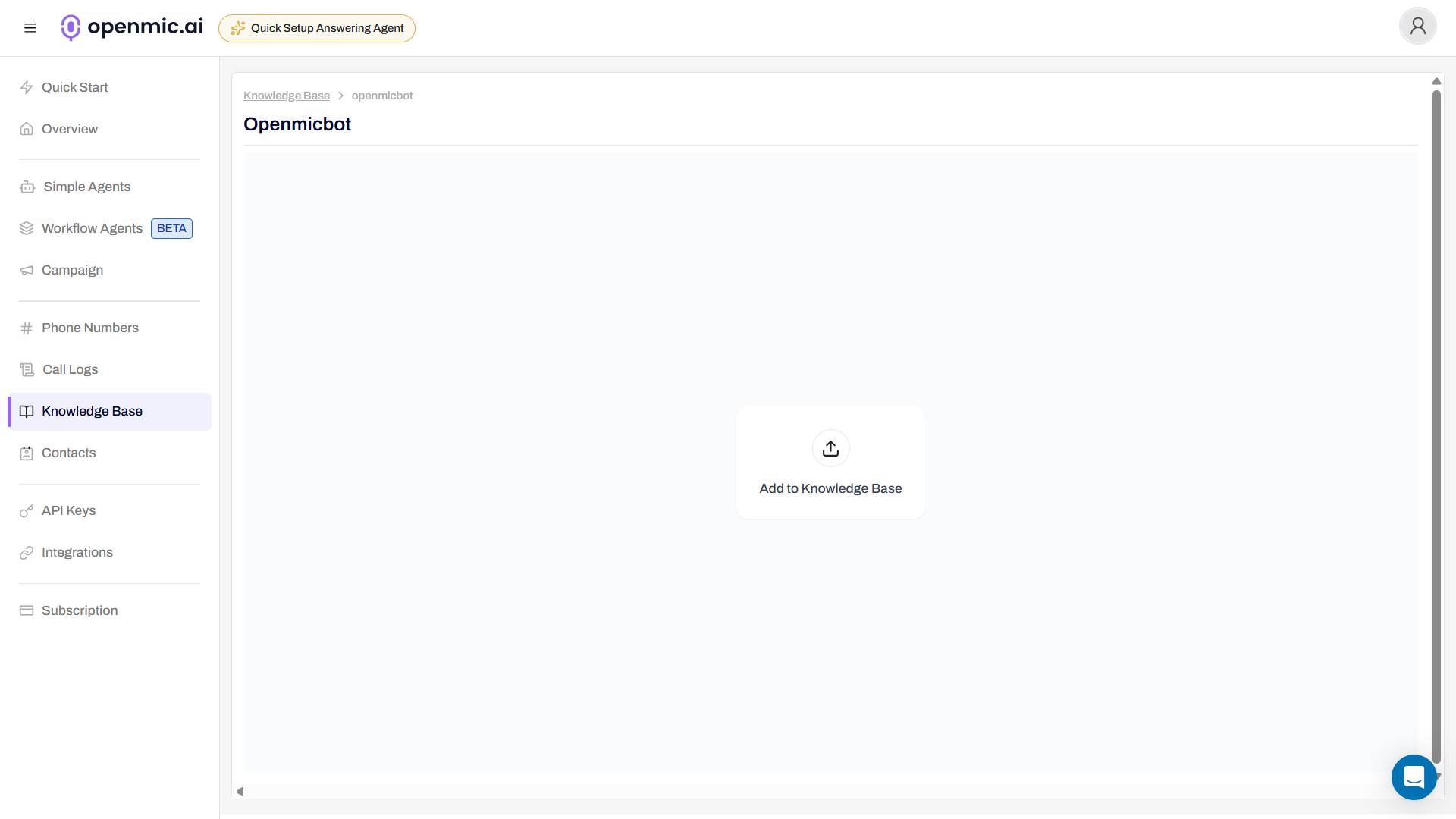
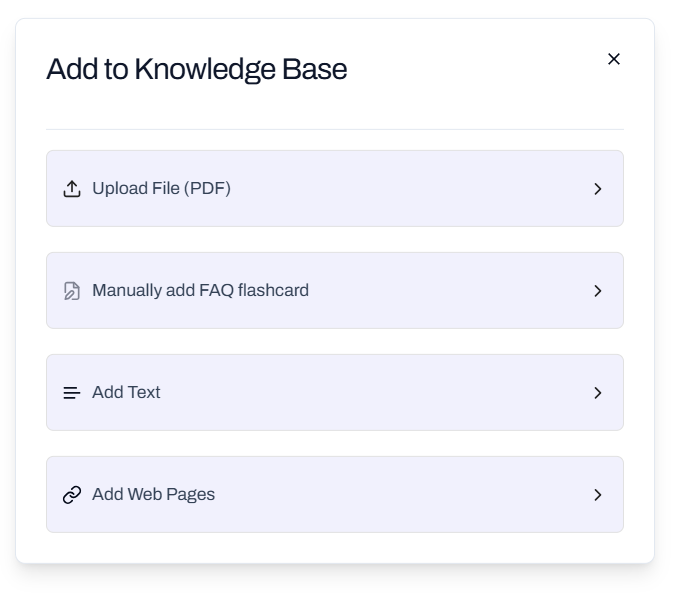
Click **"Add to Knowledge Base"** to start adding content. You have four options:
Finalize your new knowledge base by clicking **Create**.
### Step 2: Add Content Sources
Click **"Add to Knowledge Base"** to start adding content. You have four options:
 ### Upload PDF Documents
Upload PDF files containing information your agent should reference.
**Requirements:**
* **Format**: PDF only
* **Maximum file size**: 5MB per file
* **Content type**: Text-based PDFs (scanned images may have limited accuracy)
**How to use:**
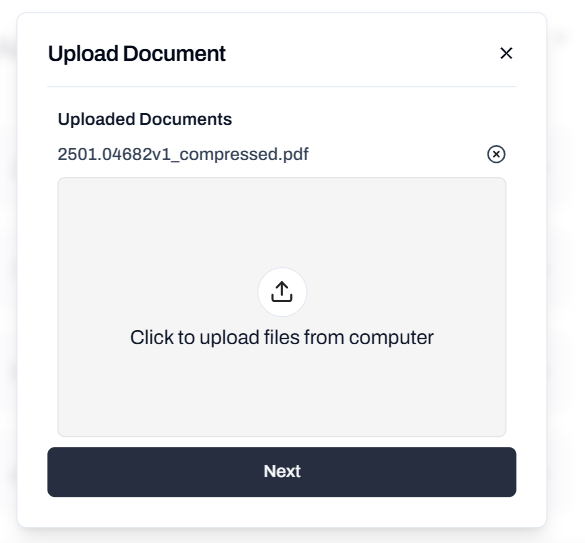
1. Click **"Upload File (PDF)"**
2. Select your PDF file from your computer
3. Click **"Next"** to upload the file
4. Wait for the file to upload and process
### Upload PDF Documents
Upload PDF files containing information your agent should reference.
**Requirements:**
* **Format**: PDF only
* **Maximum file size**: 5MB per file
* **Content type**: Text-based PDFs (scanned images may have limited accuracy)
**How to use:**
1. Click **"Upload File (PDF)"**
2. Select your PDF file from your computer
3. Click **"Next"** to upload the file
4. Wait for the file to upload and process
 **Best for:**
* Product manuals and documentation
* Policy documents and guidelines
* Training materials
* Technical specifications
* Company handbooks
Ensure your PDFs contain selectable text. Scanned images or image-based PDFs may not be processed accurately.
### Create FAQ Flashcards
Build a collection of frequently asked questions with their answers in a flashcard format.
**How to use:**
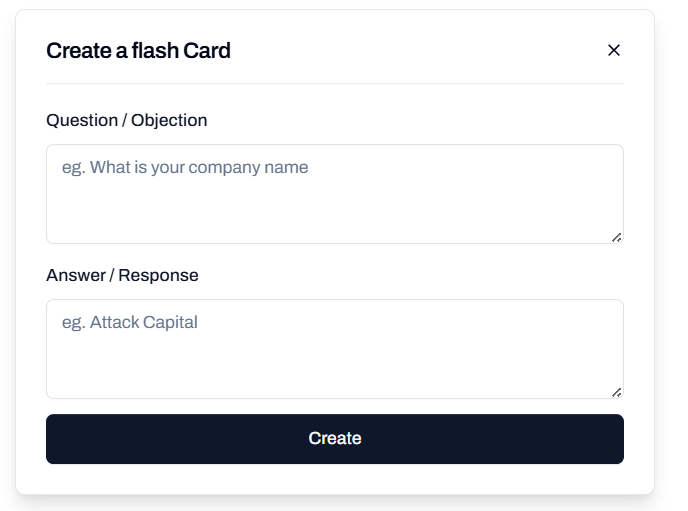
1. Click **"Manually add FAQ flashcard"**
2. Enter the question
3. Provide the detailed answer
4. Click **"Create"** and repeat for additional FAQs
**Best for:**
* Product manuals and documentation
* Policy documents and guidelines
* Training materials
* Technical specifications
* Company handbooks
Ensure your PDFs contain selectable text. Scanned images or image-based PDFs may not be processed accurately.
### Create FAQ Flashcards
Build a collection of frequently asked questions with their answers in a flashcard format.
**How to use:**
1. Click **"Manually add FAQ flashcard"**
2. Enter the question
3. Provide the detailed answer
4. Click **"Create"** and repeat for additional FAQs
 **Best for:**
* Common customer inquiries
* Quick reference information
* Standard responses to typical questions
* Support scenarios and troubleshooting steps
Write questions as your customers would ask them. Include variations of common questions for better matching.
### Add Custom Text Snippets
Add custom text snippets, instructions, or any information directly into the knowledge base.
**How to use:**
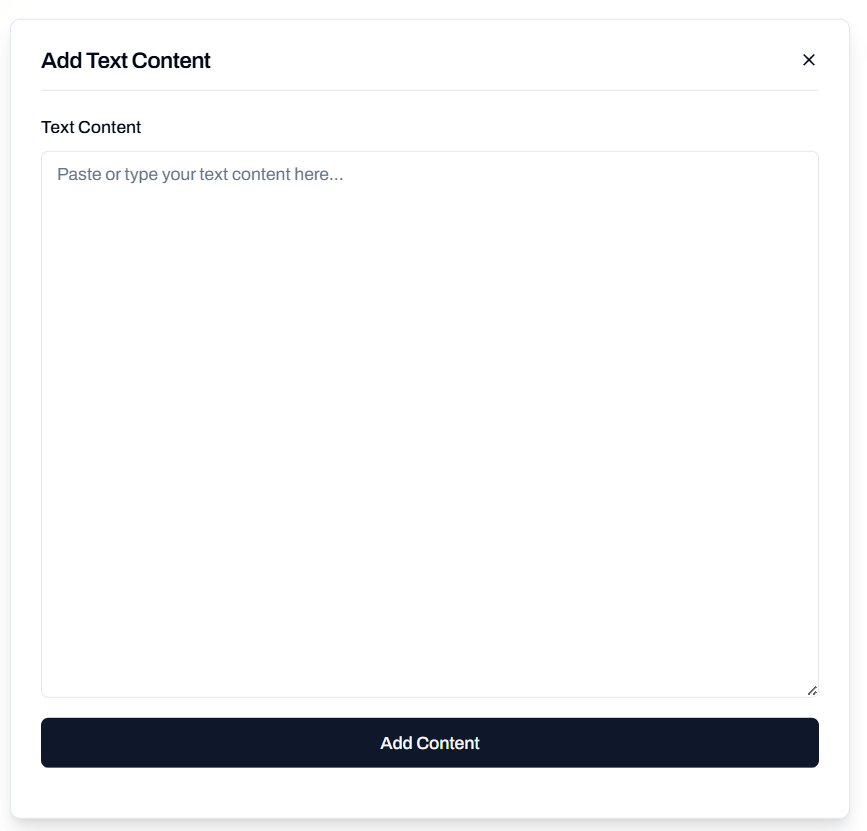
1. Click **"Add Text"**
2. Paste or type your content directly
3. Click **"Add Content"** to save
**Best for:**
* Common customer inquiries
* Quick reference information
* Standard responses to typical questions
* Support scenarios and troubleshooting steps
Write questions as your customers would ask them. Include variations of common questions for better matching.
### Add Custom Text Snippets
Add custom text snippets, instructions, or any information directly into the knowledge base.
**How to use:**
1. Click **"Add Text"**
2. Paste or type your content directly
3. Click **"Add Content"** to save
 **Best for:**
* Specific policies or guidelines
* Product information and features
* Business hours and contact information
* Pricing details
* Quick reference data
Use clear formatting with headings, bullet points, and short paragraphs for better retrieval accuracy.
### Import from Website URLs
Import content from websites by searching and selecting specific URLs from your sitemap.
**How to use:**
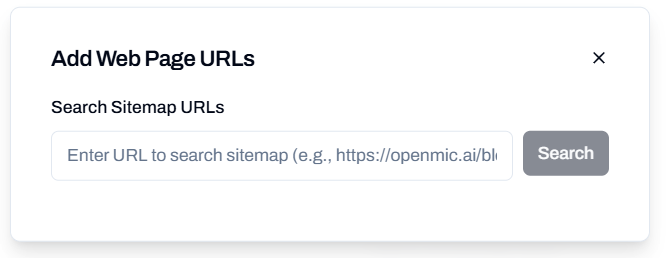
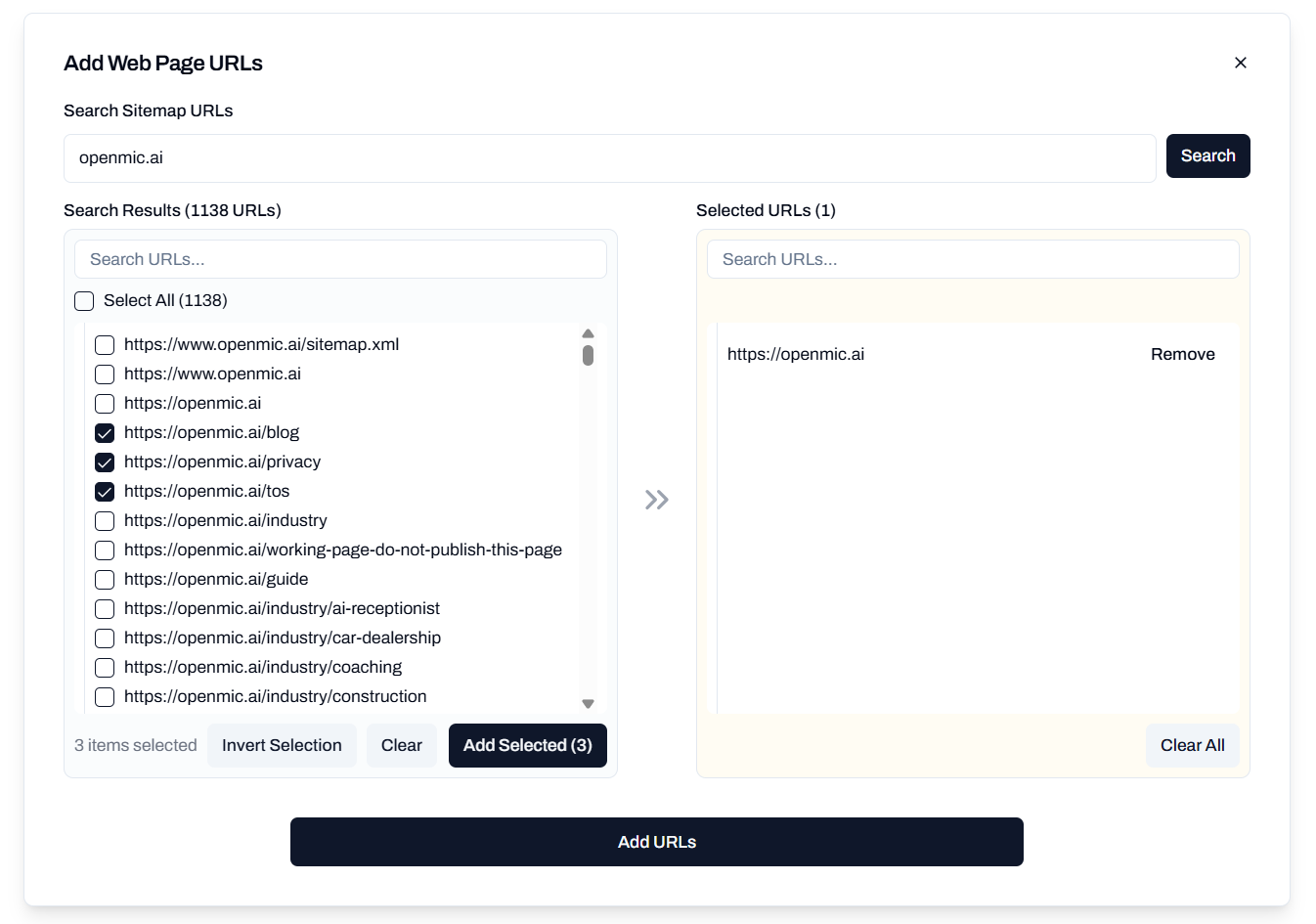
1. Click **"Add Web Pages"**
2. Enter your domain in **"Search Sitemap URLs"** field (e.g., `openmic.ai`)
3. Click **"Search"** to find all available URLs from the sitemap
**Best for:**
* Specific policies or guidelines
* Product information and features
* Business hours and contact information
* Pricing details
* Quick reference data
Use clear formatting with headings, bullet points, and short paragraphs for better retrieval accuracy.
### Import from Website URLs
Import content from websites by searching and selecting specific URLs from your sitemap.
**How to use:**
1. Click **"Add Web Pages"**
2. Enter your domain in **"Search Sitemap URLs"** field (e.g., `openmic.ai`)
3. Click **"Search"** to find all available URLs from the sitemap
 4. Review the search results (e.g., 1137 URLs found)
5. Check the boxes next to relevant URLs you want to include
6. Click **"Add Selected (X)"** to choose the URLs
7. Click **"Add URLs"** to add the chosen URLs to your knowledge base
4. Review the search results (e.g., 1137 URLs found)
5. Check the boxes next to relevant URLs you want to include
6. Click **"Add Selected (X)"** to choose the URLs
7. Click **"Add URLs"** to add the chosen URLs to your knowledge base
 **Features:**
* Automatically crawls sitemap URLs
* Select multiple URLs at once
* Search within results to find specific pages
* View count of selected URLs
**Best for:**
* Product pages and catalogs
* Help center articles
* Blog posts and announcements
* Online documentation
* Company information pages
The system will fetch and process the content from each selected URL. Ensure the URLs are publicly accessible.
## Connecting Knowledge Base to Agents
Once you've created and populated your knowledge base, you can connect it to both simple agents and workflow agents.
Connect your knowledge base to a simple agent for straightforward AI conversations:
Navigate to your simple agent's configuration page.
Find the **Knowledge Base** section in the agent settings.
Choose the knowledge base(s) you want to connect to this agent.
**Features:**
* Automatically crawls sitemap URLs
* Select multiple URLs at once
* Search within results to find specific pages
* View count of selected URLs
**Best for:**
* Product pages and catalogs
* Help center articles
* Blog posts and announcements
* Online documentation
* Company information pages
The system will fetch and process the content from each selected URL. Ensure the URLs are publicly accessible.
## Connecting Knowledge Base to Agents
Once you've created and populated your knowledge base, you can connect it to both simple agents and workflow agents.
Connect your knowledge base to a simple agent for straightforward AI conversations:
Navigate to your simple agent's configuration page.
Find the **Knowledge Base** section in the agent settings.
Choose the knowledge base(s) you want to connect to this agent.
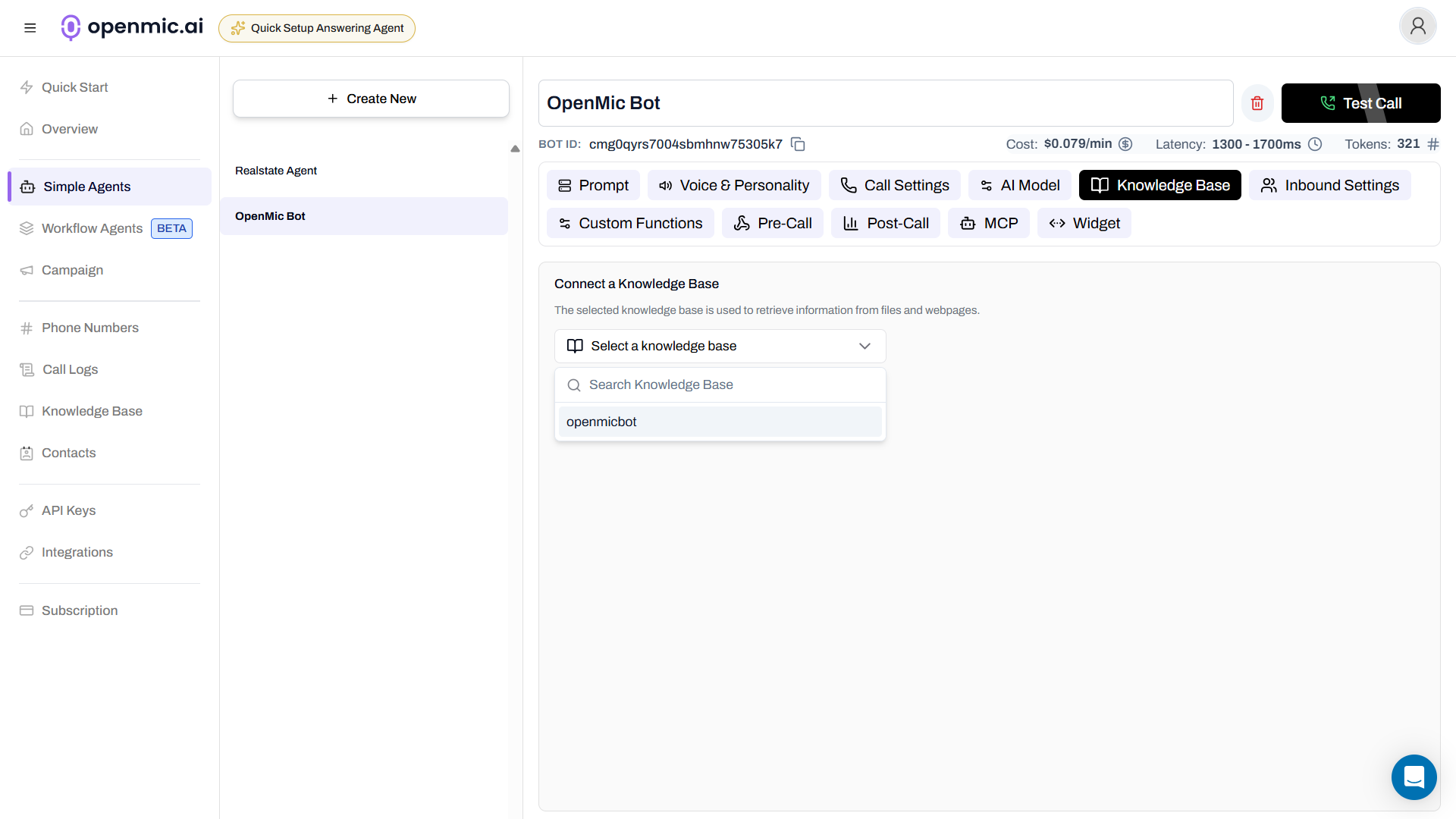 Your simple agent will now automatically reference the knowledge base during
conversations!
For workflow agents, you can connect knowledge bases to individual **Conversation Nodes**, giving you granular control over which parts of your workflow have access to which information.
Navigate to your workflow agent and open the workflow editor.
Your simple agent will now automatically reference the knowledge base during
conversations!
For workflow agents, you can connect knowledge bases to individual **Conversation Nodes**, giving you granular control over which parts of your workflow have access to which information.
Navigate to your workflow agent and open the workflow editor.
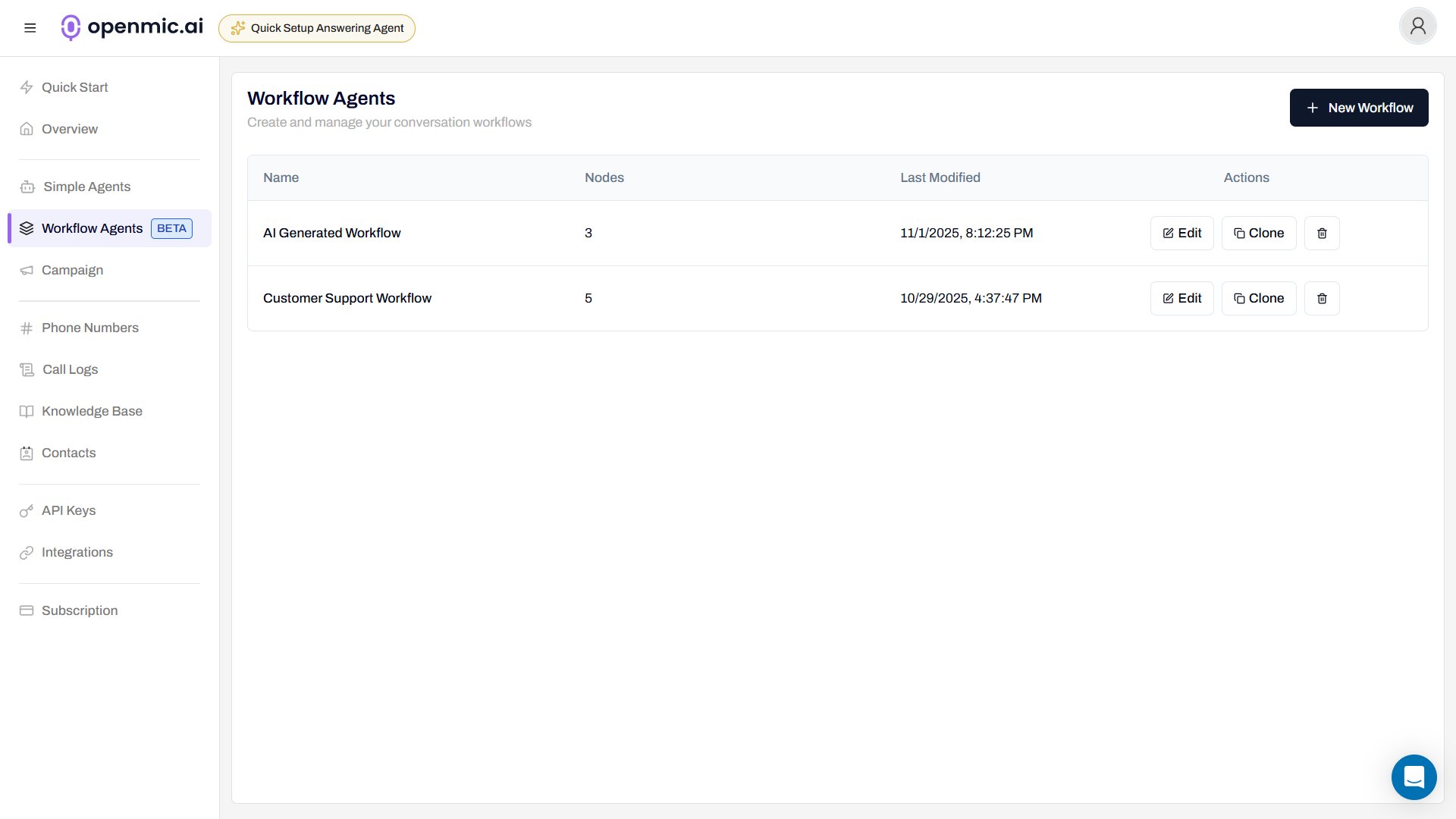 Click on the conversation node where you want to add knowledge base access.
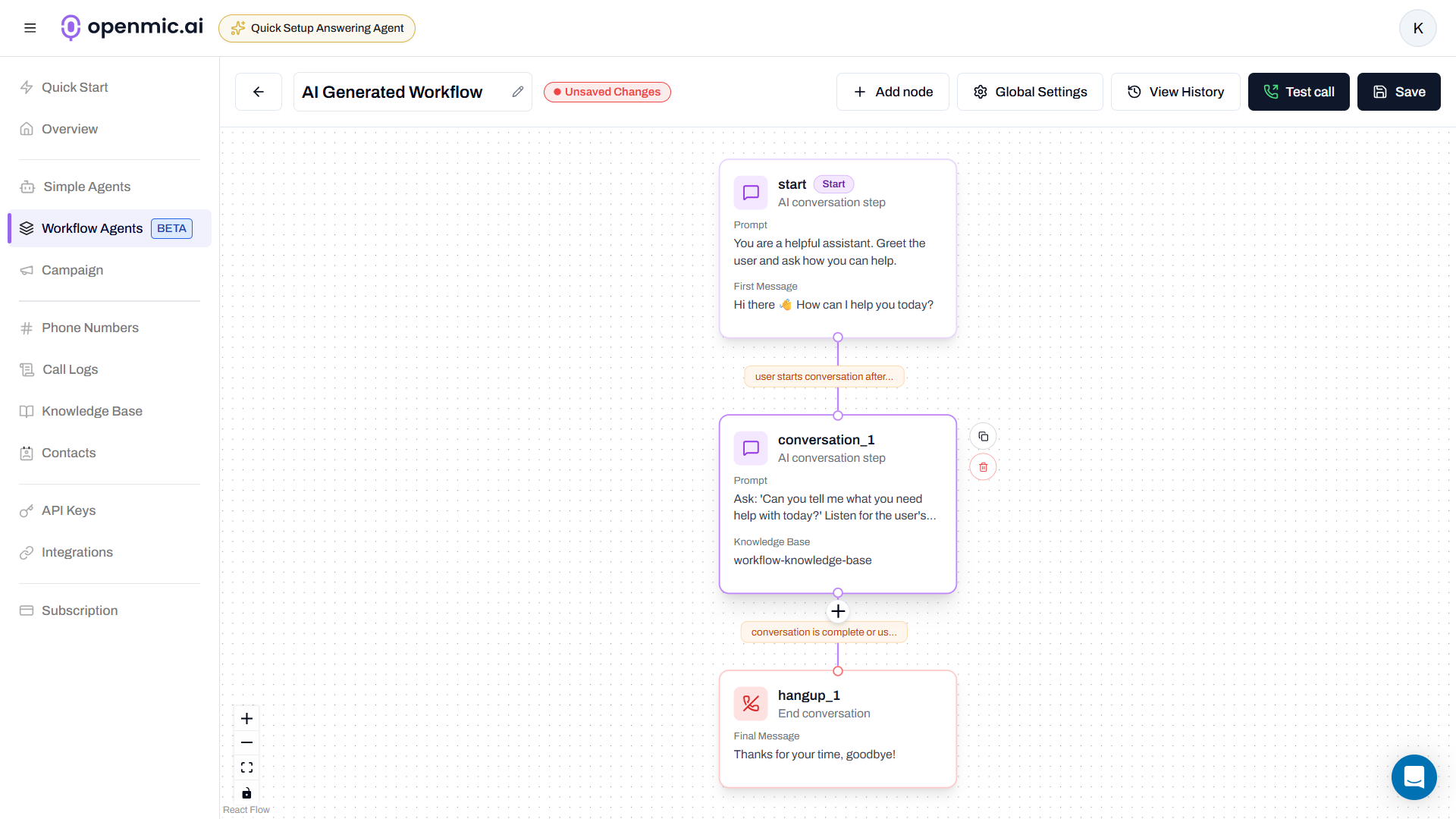 In the node settings panel, locate the **Knowledge Base** section and select the knowledge base(s) you want to connect to this specific conversation node.
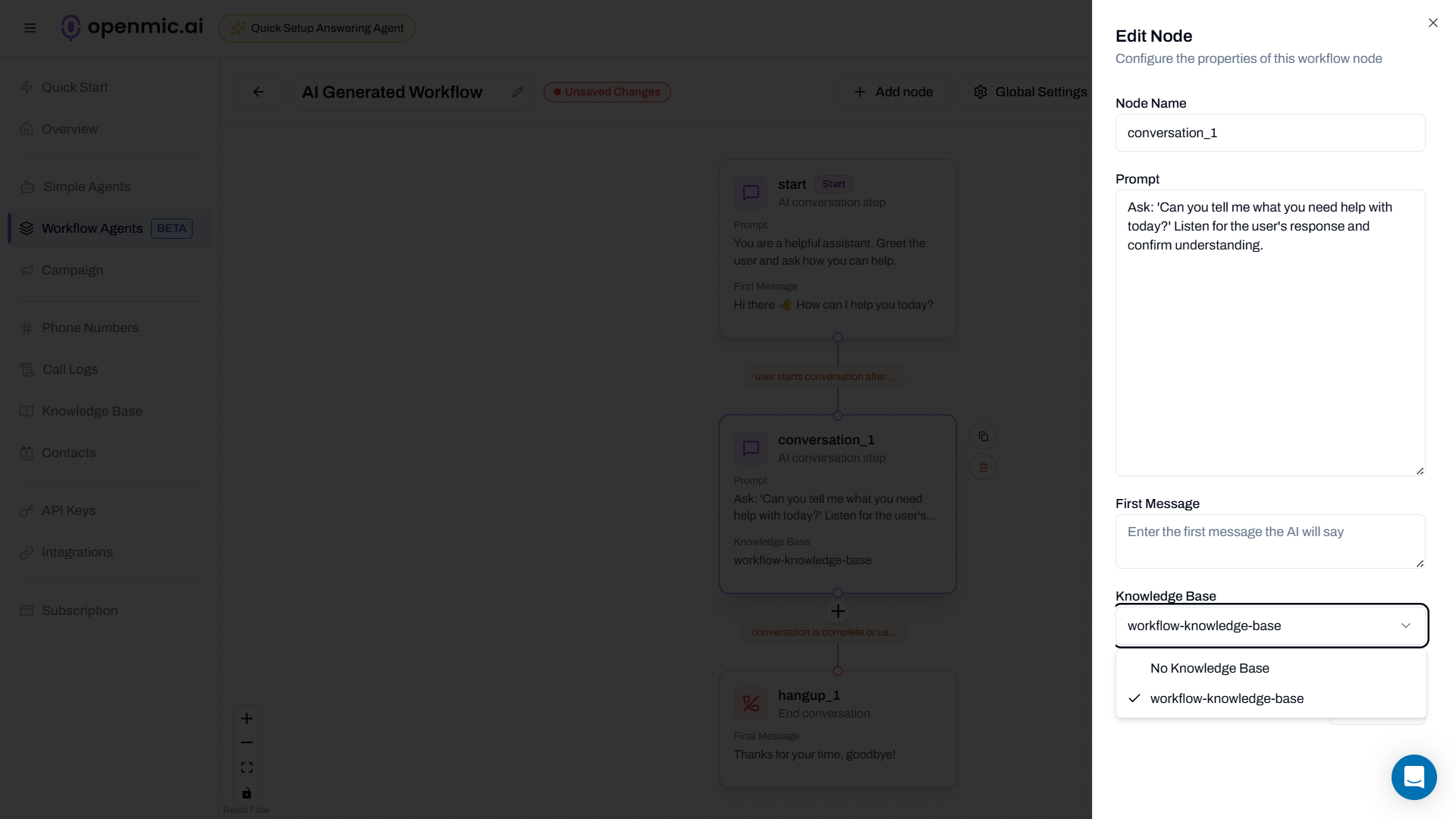 Save your workflow to apply the knowledge base connection.
Each conversation node in a workflow can have different knowledge bases attached, allowing you to provide context-specific information at different stages of your workflow.
The conversation node will now automatically reference the connected knowledge base when processing conversations!
## Best Practices
### Organize Information Clearly
* Use clear headings and hierarchical structure - Keep information focused
and concise - Group related information together - Use bullet points and
lists for better readability
* Ensure PDFs are text-based, not scanned images - Use clear formatting with
headings and sections - Keep file sizes under 5MB limit - Break large
documents into smaller, topic-focused files - Use descriptive titles and
section headers
* Make questions specific and clear - Provide complete, standalone answers -
Avoid ambiguous pronouns (use specific names instead of "it" or "this") -
Include relevant details like dates, names, and numbers - Write questions as
customers would ask them
* Use Markdown formatting for better structure - Write short paragraphs
focusing on single concepts - Include specific details and avoid vague
references - Use descriptive headings to separate topics - Make information
self-contained (avoid references to missing context)
* Choose pages with clear, well-structured content - Ensure URLs are
publicly accessible and stable - Prefer pages with good formatting over
walls of text - Verify content is accurate and up-to-date - Select pages
that are directly relevant to your use case
## Tips for Better Performance
**Use Knowledge Base for information, not instructions.** Put operational
instructions and agent behavior guidelines in your agent's prompt. Use the
knowledge base to supply supporting facts, data, and reference information.
**Stay within file size limits.** Each PDF must be under 5MB. If you have
larger documents, consider: - Splitting them into smaller, topic-focused files
* Compressing the PDF file - Converting to text format instead
### Improving Response Accuracy
To ensure your agent only uses information from the knowledge base, add this to your agent's prompt:
```text theme={null}
Only answer using the information from the knowledge base.
If the knowledge base does not contain relevant information to answer the question,
politely respond: "I don't have that information in my knowledge base right now."
```
### When to Use Each Source Type
| Source Type | Use When | Example |
| ------------- | --------------------------- | ----------------------------------------------------- |
| **PDF** | You have existing documents | Product manuals, policy PDFs, reports |
| **FAQ** | You know common questions | "What are your hours?", "How do I reset my password?" |
| **Text** | You need custom snippets | Company policies, pricing info, quick facts |
| **Web Pages** | Content is already online | Help center, blog posts, product pages |
## Managing Your Knowledge Base
### Updating Content
* **PDFs**: Upload a new version and remove the old one
* **FAQs**: Edit existing flashcards or add new ones
* **Text**: Edit text snippets directly
* **Web Pages**: Re-search and add updated URLs (content is refreshed from source)
### Organizing Multiple Knowledge Bases
You can create multiple knowledge bases and link them to different agents:
* **By Topic**: Separate knowledge bases for billing, technical support, sales
* **By Product**: Different knowledge bases for each product line
* **By Use Case**: Customer service, internal support, sales inquiries
An agent can be connected to multiple knowledge bases simultaneously.
## Frequently Asked Questions
No, the knowledge base works automatically once connected to your agent. You
don't need to make any changes to your prompts for it to activate.
Yes, you can connect multiple knowledge bases to a single agent. This allows
you to organize information by topic or category while giving your agent
access to all of it.
The agent will respond based on its default capabilities. You can add a
prompt instruction to explicitly handle these cases (see "Improving Response
Accuracy" above).
Check the following: - Ensure the knowledge base is properly connected to
your agent - Verify your documents are well-structured and readable - For
PDFs, ensure they're text-based, not scanned images - Review your content
for clarity and completeness - Make sure the information is relevant to the
questions being asked
You can edit or replace existing content at any time. Changes will be
reflected in your agent's responses after saving and reprocessing.
Check your conversation logs or analytics dashboard for details on knowledge
base usage during calls.
Currently, only PDF files are supported for document uploads. For other
formats, you can: - Copy and paste content as text - Convert documents to
PDF first - Add content as web pages if it's available online
While there may be practical limits, you can create multiple knowledge bases
to organize large amounts of content effectively.
## Use Cases
### Customer Support
Create a knowledge base with:
* Product documentation PDFs
* Common FAQs about returns, shipping, and policies
* Troubleshooting guides as text
* Help center article URLs
### Sales Assistance
Build a knowledge base containing:
* Product catalogs and specifications (PDFs)
* Pricing information (text)
* Sales scripts and talking points (FAQs)
* Case studies from your website (web pages)
### Appointment Booking
Include information about:
* Service descriptions (text)
* Availability policies (FAQs)
* Booking and cancellation policies (PDF or text)
* Location and contact information (text)
### E-commerce Support
Provide agents with:
* Product information from your website (web pages)
* Shipping and returns policies (PDF)
* Common shopping questions (FAQs)
* Store policies and guidelines (text)
### Technical Support
Equip your agent with:
* Technical documentation (PDFs)
* Troubleshooting steps (FAQs)
* System requirements and specifications (text)
* Knowledge base articles (web pages)
**For healthcare and regulated industries**, ensure your knowledge base
complies with relevant regulations (HIPAA, GDPR, etc.) and never include
sensitive patient/customer data.
## Troubleshooting
### Agent not retrieving information
**Possible causes:**
* Knowledge base not connected to agent
* Content not properly formatted
* Question too vague or doesn't match content
**Solutions:**
* Verify knowledge base is linked in agent settings
* Improve content structure with clear headings
* Add more variations of common questions
### PDF content not recognized
**Possible causes:**
* PDF contains scanned images instead of text
* File exceeds 5MB limit
* PDF is password-protected or encrypted
**Solutions:**
* Use OCR to convert scanned PDFs to text
* Compress or split large PDFs
* Remove password protection before uploading
### Web pages not loading
**Possible causes:**
* URLs require authentication
* Pages are dynamically generated
* Sitemap not available or incorrect
**Solutions:**
* Ensure pages are publicly accessible
* Add content manually as text if pages are restricted
* Verify the domain has a sitemap
Save your workflow to apply the knowledge base connection.
Each conversation node in a workflow can have different knowledge bases attached, allowing you to provide context-specific information at different stages of your workflow.
The conversation node will now automatically reference the connected knowledge base when processing conversations!
## Best Practices
### Organize Information Clearly
* Use clear headings and hierarchical structure - Keep information focused
and concise - Group related information together - Use bullet points and
lists for better readability
* Ensure PDFs are text-based, not scanned images - Use clear formatting with
headings and sections - Keep file sizes under 5MB limit - Break large
documents into smaller, topic-focused files - Use descriptive titles and
section headers
* Make questions specific and clear - Provide complete, standalone answers -
Avoid ambiguous pronouns (use specific names instead of "it" or "this") -
Include relevant details like dates, names, and numbers - Write questions as
customers would ask them
* Use Markdown formatting for better structure - Write short paragraphs
focusing on single concepts - Include specific details and avoid vague
references - Use descriptive headings to separate topics - Make information
self-contained (avoid references to missing context)
* Choose pages with clear, well-structured content - Ensure URLs are
publicly accessible and stable - Prefer pages with good formatting over
walls of text - Verify content is accurate and up-to-date - Select pages
that are directly relevant to your use case
## Tips for Better Performance
**Use Knowledge Base for information, not instructions.** Put operational
instructions and agent behavior guidelines in your agent's prompt. Use the
knowledge base to supply supporting facts, data, and reference information.
**Stay within file size limits.** Each PDF must be under 5MB. If you have
larger documents, consider: - Splitting them into smaller, topic-focused files
* Compressing the PDF file - Converting to text format instead
### Improving Response Accuracy
To ensure your agent only uses information from the knowledge base, add this to your agent's prompt:
```text theme={null}
Only answer using the information from the knowledge base.
If the knowledge base does not contain relevant information to answer the question,
politely respond: "I don't have that information in my knowledge base right now."
```
### When to Use Each Source Type
| Source Type | Use When | Example |
| ------------- | --------------------------- | ----------------------------------------------------- |
| **PDF** | You have existing documents | Product manuals, policy PDFs, reports |
| **FAQ** | You know common questions | "What are your hours?", "How do I reset my password?" |
| **Text** | You need custom snippets | Company policies, pricing info, quick facts |
| **Web Pages** | Content is already online | Help center, blog posts, product pages |
## Managing Your Knowledge Base
### Updating Content
* **PDFs**: Upload a new version and remove the old one
* **FAQs**: Edit existing flashcards or add new ones
* **Text**: Edit text snippets directly
* **Web Pages**: Re-search and add updated URLs (content is refreshed from source)
### Organizing Multiple Knowledge Bases
You can create multiple knowledge bases and link them to different agents:
* **By Topic**: Separate knowledge bases for billing, technical support, sales
* **By Product**: Different knowledge bases for each product line
* **By Use Case**: Customer service, internal support, sales inquiries
An agent can be connected to multiple knowledge bases simultaneously.
## Frequently Asked Questions
No, the knowledge base works automatically once connected to your agent. You
don't need to make any changes to your prompts for it to activate.
Yes, you can connect multiple knowledge bases to a single agent. This allows
you to organize information by topic or category while giving your agent
access to all of it.
The agent will respond based on its default capabilities. You can add a
prompt instruction to explicitly handle these cases (see "Improving Response
Accuracy" above).
Check the following: - Ensure the knowledge base is properly connected to
your agent - Verify your documents are well-structured and readable - For
PDFs, ensure they're text-based, not scanned images - Review your content
for clarity and completeness - Make sure the information is relevant to the
questions being asked
You can edit or replace existing content at any time. Changes will be
reflected in your agent's responses after saving and reprocessing.
Check your conversation logs or analytics dashboard for details on knowledge
base usage during calls.
Currently, only PDF files are supported for document uploads. For other
formats, you can: - Copy and paste content as text - Convert documents to
PDF first - Add content as web pages if it's available online
While there may be practical limits, you can create multiple knowledge bases
to organize large amounts of content effectively.
## Use Cases
### Customer Support
Create a knowledge base with:
* Product documentation PDFs
* Common FAQs about returns, shipping, and policies
* Troubleshooting guides as text
* Help center article URLs
### Sales Assistance
Build a knowledge base containing:
* Product catalogs and specifications (PDFs)
* Pricing information (text)
* Sales scripts and talking points (FAQs)
* Case studies from your website (web pages)
### Appointment Booking
Include information about:
* Service descriptions (text)
* Availability policies (FAQs)
* Booking and cancellation policies (PDF or text)
* Location and contact information (text)
### E-commerce Support
Provide agents with:
* Product information from your website (web pages)
* Shipping and returns policies (PDF)
* Common shopping questions (FAQs)
* Store policies and guidelines (text)
### Technical Support
Equip your agent with:
* Technical documentation (PDFs)
* Troubleshooting steps (FAQs)
* System requirements and specifications (text)
* Knowledge base articles (web pages)
**For healthcare and regulated industries**, ensure your knowledge base
complies with relevant regulations (HIPAA, GDPR, etc.) and never include
sensitive patient/customer data.
## Troubleshooting
### Agent not retrieving information
**Possible causes:**
* Knowledge base not connected to agent
* Content not properly formatted
* Question too vague or doesn't match content
**Solutions:**
* Verify knowledge base is linked in agent settings
* Improve content structure with clear headings
* Add more variations of common questions
### PDF content not recognized
**Possible causes:**
* PDF contains scanned images instead of text
* File exceeds 5MB limit
* PDF is password-protected or encrypted
**Solutions:**
* Use OCR to convert scanned PDFs to text
* Compress or split large PDFs
* Remove password protection before uploading
### Web pages not loading
**Possible causes:**
* URLs require authentication
* Pages are dynamically generated
* Sitemap not available or incorrect
**Solutions:**
* Ensure pages are publicly accessible
* Add content manually as text if pages are restricted
* Verify the domain has a sitemap