

Interactive Demo
See the GoHighLevel integration in action:Prerequisites
Before connecting GoHighLevel with OpenMic, make sure you have the following:- An active GoHighLevel account with access to the workspace you want to connect.
- An OpenMic account with at least one agent created.
- Access to the OpenMic Dashboard, where you can configure integrations and custom functions.
Step 1: Connect Your GoHighLevel Account
To begin, connect your GoHighLevel account from the OpenMic Dashboard.- Go to the Integrations section in your OpenMic Dashboard.
- Locate the GoHighLevel card.
- Click Connect GoHighLevel.
- A secure GoHighLevel login popup will appear.
- Log in and approve access to allow OpenMic to manage your GHL contacts.
During this step, OpenMic will request permission to access your GoHighLevel account so it can manage your contacts and calendar on your behalf.
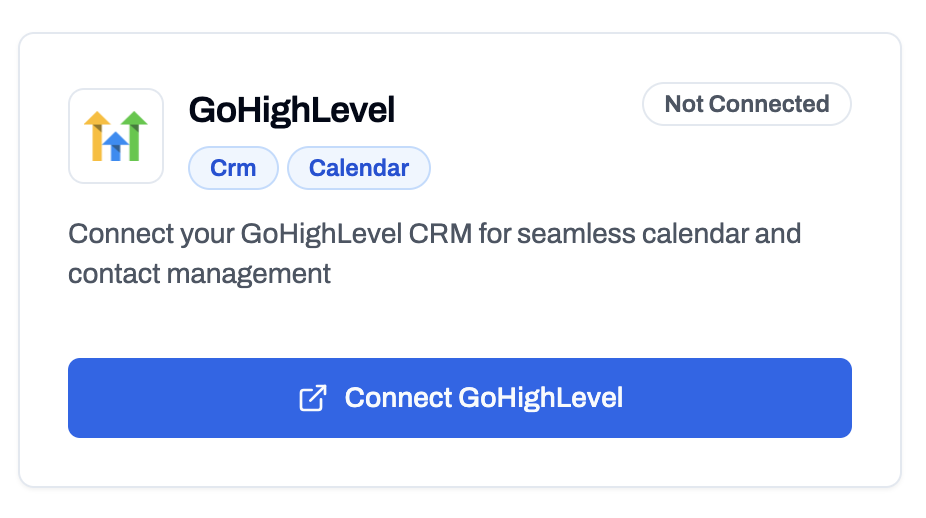
Connect GoHighLevel Integration
Step 2: Add GoHighLevel Tools to an Agent
Once connected, you can create GHL tools directly inside your agent’s settings.- Navigate to Dashboard → Simple Agents.
- Select or create an agent.
- Open the Custom Functions tab.
- Click Add Function.
- From the list, choose from the available GoHighLevel tools:
- GoHighLevel Contact Get - Look up existing contacts
- GoHighLevel Contact Create - Create new contacts
- GoHighLevel Check Availability - Check available appointment slots
- GoHighLevel Create Event - Book appointments
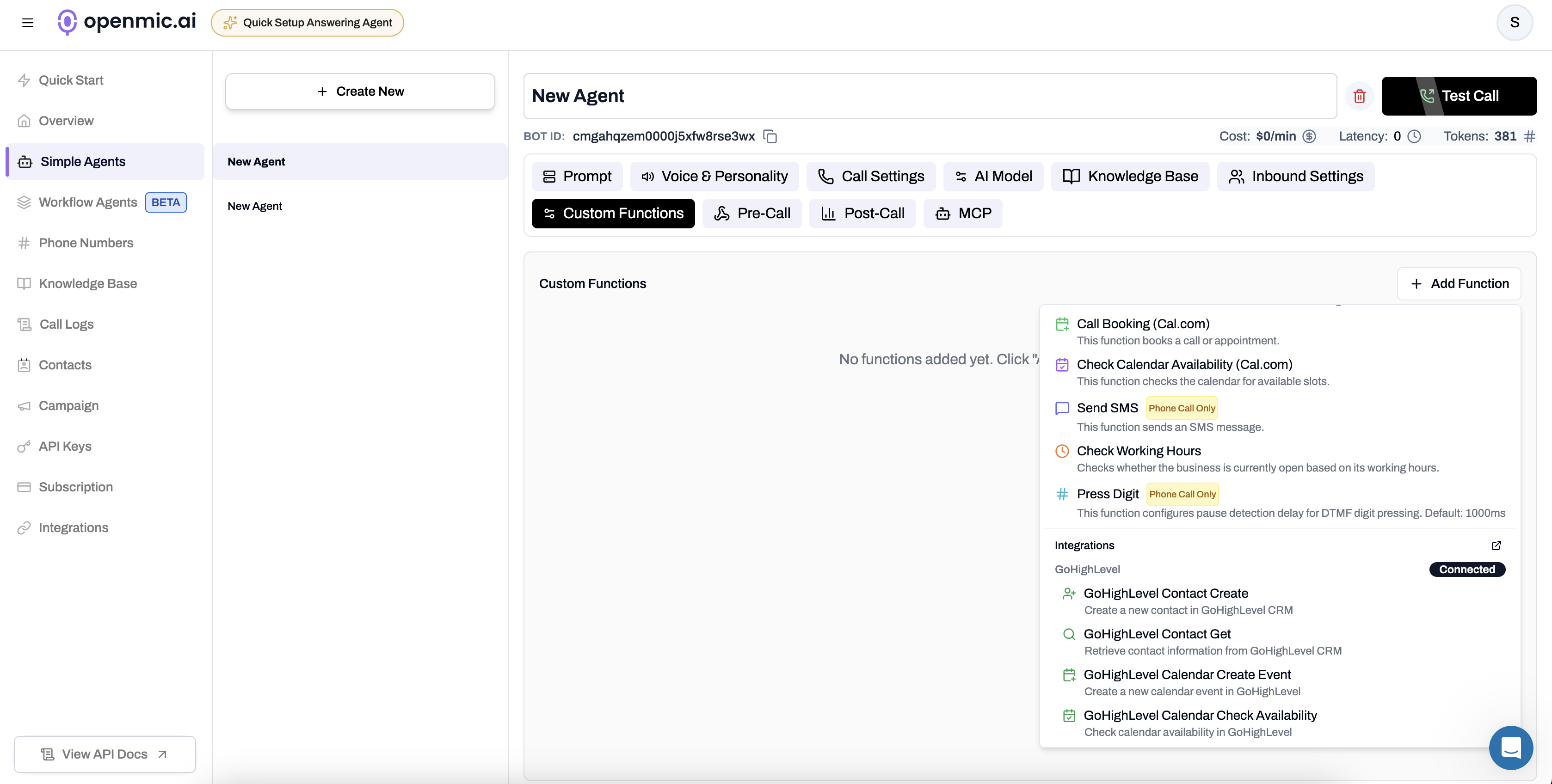
Select GoHighLevel Functions
-
For Create Contact or Get Contact, you’ll see a field labeled Test Phone Number (for web calls).
- During web call testing, you can enter a phone number manually here.
- During live calls, the caller’s number is used automatically.
-
For Check Availability and Create Event tools, you’ll need to provide a Calendar ID:
- Log in to your GoHighLevel account
- Navigate to Settings → Calendars
- Each calendar listed will display its unique ID
- Copy the Calendar ID and paste it into the tool configuration
- Click Create Function to add the selected tool to your current agent.
That’s it — no extra setup needed.
Once added, your agent can now create and fetch contacts, check availability, and book appointments in real time during calls.
Once added, your agent can now create and fetch contacts, check availability, and book appointments in real time during calls.
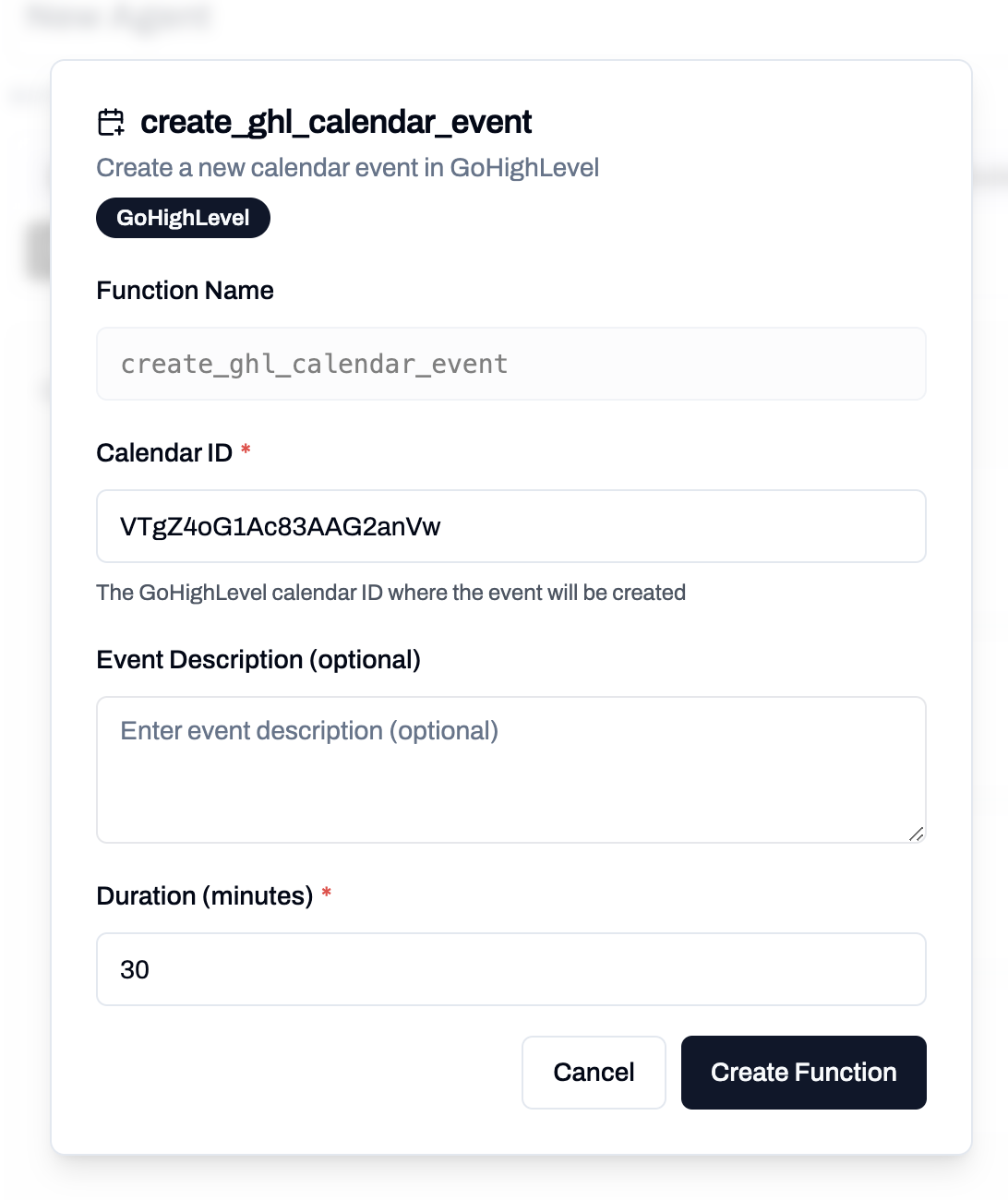
Create GoHighLevel event Function
Step 3: Configure Assistant System Prompt
After adding the GoHighLevel tools to your assistant, it’s important to provide a clear system prompt. This tells your assistant how and when to use each GoHighLevel tool during conversations. Here’s a simple example you can use or modify:Complete Appointment Booking Workflow
Here’s how all four GoHighLevel tools work together for a seamless appointment booking experience:Workflow Steps
-
Contact Lookup - The assistant uses Get Contact to check if the caller exists in your GoHighLevel CRM
- If found: Retrieves the contact ID and existing details
- If not found: Proceeds to step 2
-
Contact Creation - If needed, the assistant uses Create Contact to add the caller as a new contact
- Collects: First name, last name, email, phone number
- Returns a new contact ID for use in booking
-
Check Available Times - The assistant uses Check Availability to find open slots
- Queries your GoHighLevel calendar using the Calendar ID
- Presents available time options to the caller
- Helps the caller select a convenient time
-
Book the Appointment - Finally, the assistant uses Create Event to confirm the booking
- Links the event to the contact ID (from step 1 or 2)
- Creates the appointment in your GoHighLevel calendar
- Triggers any GoHighLevel automations (confirmations, reminders, etc.)
Example Conversation Flow
Tool Configurations
GoHighLevel Get Contact Tool
This tool helps the assistant check if the caller already exists in your GoHighLevel account. It prevents duplicates and allows the agent to pull up existing contact details quickly. Inputphone: The phone number of the caller to look up in GoHighLevel.
GoHighLevel Create Contact Tool
This tool lets the assistant add a new contact in GoHighLevel when no existing record is found. It’s used for new callers or leads that aren’t already saved. InputfirstName: The contact’s first name.lastName: The contact’s last name.email: The contact’s email address.phone: The contact’s phone number.
GoHighLevel Check Availability Tool
This tool allows your assistant to check available appointment slots in a specific GoHighLevel calendar. Use this before booking appointments to ensure the requested time is available. InputcalendarId: The unique identifier for your GoHighLevel calendar (required).startDate: The start date/time to begin checking availability (ISO 8601 format).endDate: The end date/time to stop checking availability (ISO 8601 format).
- Log in to your GoHighLevel account
- Navigate to Settings → Calendars
- Each calendar will display its unique Calendar ID
- Copy this ID and use it when configuring the Check Availability tool
GoHighLevel Create Event Tool
This tool enables your assistant to book appointments directly in your GoHighLevel calendar. It should be used after confirming a contact exists and verifying time slot availability. InputcalendarId: The unique identifier for your GoHighLevel calendar (required).contactId: The GoHighLevel contact ID to associate with the appointment (obtained from Get Contact or Create Contact tools).startTime: The appointment start time (ISO 8601 format).endTime: The appointment end time (ISO 8601 format).title: A title or description for the appointment.
- Always obtain a valid
contactIdbefore creating an event (use Get Contact or Create Contact first) - Always check availability before booking (use Check Availability tool first)
- The
calendarIdmust match the calendar where you want to book the appointment